

Work with KML and GPX files in map.geo.admin.ch
This guide has been edited to further help our users take full advantage of all functions related to internal and external KML and GPX files. While the basic instructions and explanations about the Drawing and measuring tool can be found in the "Drawing & measuring on the map" section, this paragraph serves to complement the one explaining the basics of sharing, exporting and further editing the KML and GPX files.
Back to the main help page
Origins and different types of KML and GPX files?
The system handles KML and GPX files differently, depending on how the files were imported or created.
This chapter explains the 4 types of KML (and, where applicable, GPX) files and shows how map.geo.admin.ch handles them.
1. An internal KML file, a map.geo.admin.ch drawing
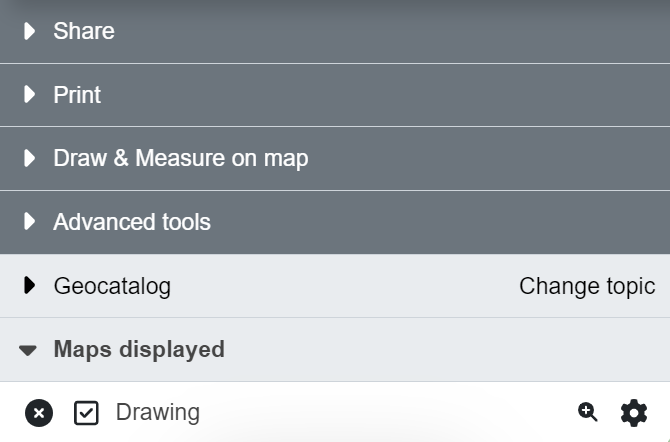
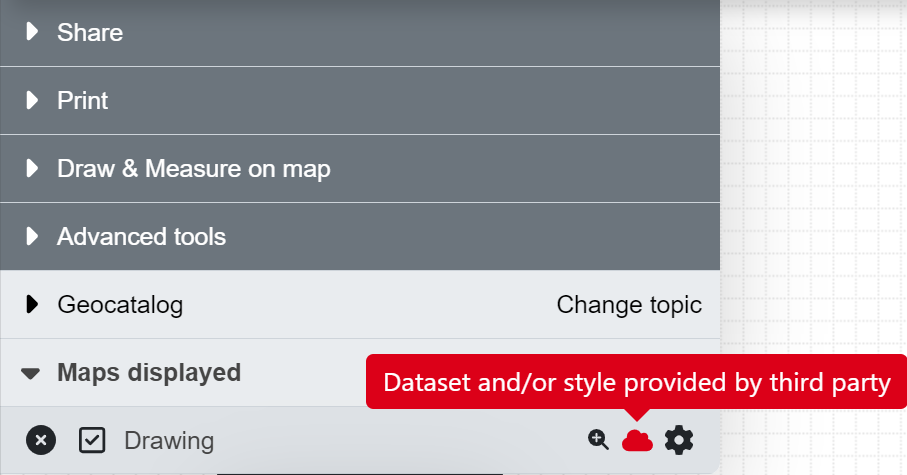
This is the KML file that was stored in the system when you exited "Draw & Measure on the Map" mode and that is displayed in the "Displayed Maps" menu section as a "Drawing" without the red notice "Third-party data and/or style". The author of the drawing is the owner and has write access to the drawing. If you wish, you can reopen the "Draw and measure on the map" mode to edit the file as often as you like and share it with others, but you retain write access to this drawing.
Warning: If you reload the browser, you will lose ownership of your drawing and will no longer be able to edit it (see the third type of KML/GPX file below).
Note: The file can be shared with third parties for editing by going to "Share" in drawing mode and passing on the "Link to edit your drawing/style".
2. An external KML, KMZ or GPX file that has been imported into map.geo.admin.ch from a local drive
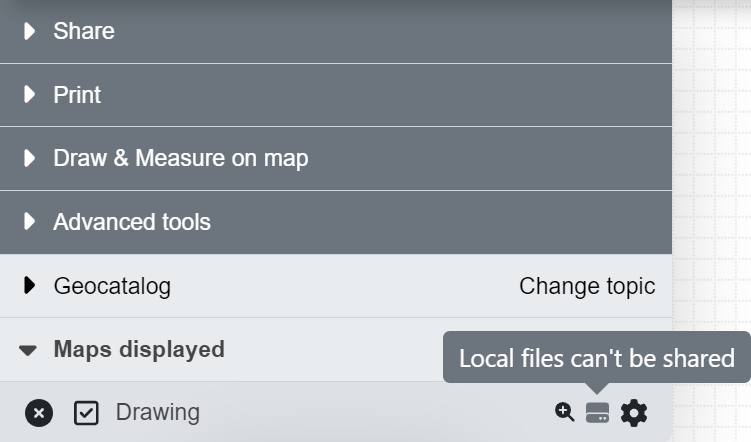
This is a KML / KMZ / GPX file that has been downloaded locally in your computer, or has been sent to you via Mail, and has been imported to map.geo.admin.ch. It will appear in the "Maps displayed" menu with a grey offline symbol on the right with the text "Local files can't be shared".. This file is not possible to share in any way (be it with the share option or via copying the URL) and obviously, cannot be edited. It will however appear within a generated PDF file, meaning it can be printed out.
The reason for this is, that the file is nowhere to be found online nor in the backlog of the map.geo.admin.ch system.
Attention: Before downloading a KML / GPX file and store it in your computer (or sharing it with anyone else), make sure that you have completely finished it. Otherwise, we suggest you to copy an "Edit Link" to be able to further edit it. More on this link below in the "Edit and share your drawings" section.
3. An internal KML file, a map.geo.admin.ch drawing that has not been imported.
This applies to any KML file that was created in map.geo.admin.ch AND WAS NOT IMPORTED. This means that if the file:
- has been shared via the Share link in the menu
- has been shared via URL
- has been shared via the share link of the Drawing & Measure mode
- has been (accidentally) refreshed / recharged after having been finished (by accidently clicking f5 for example)
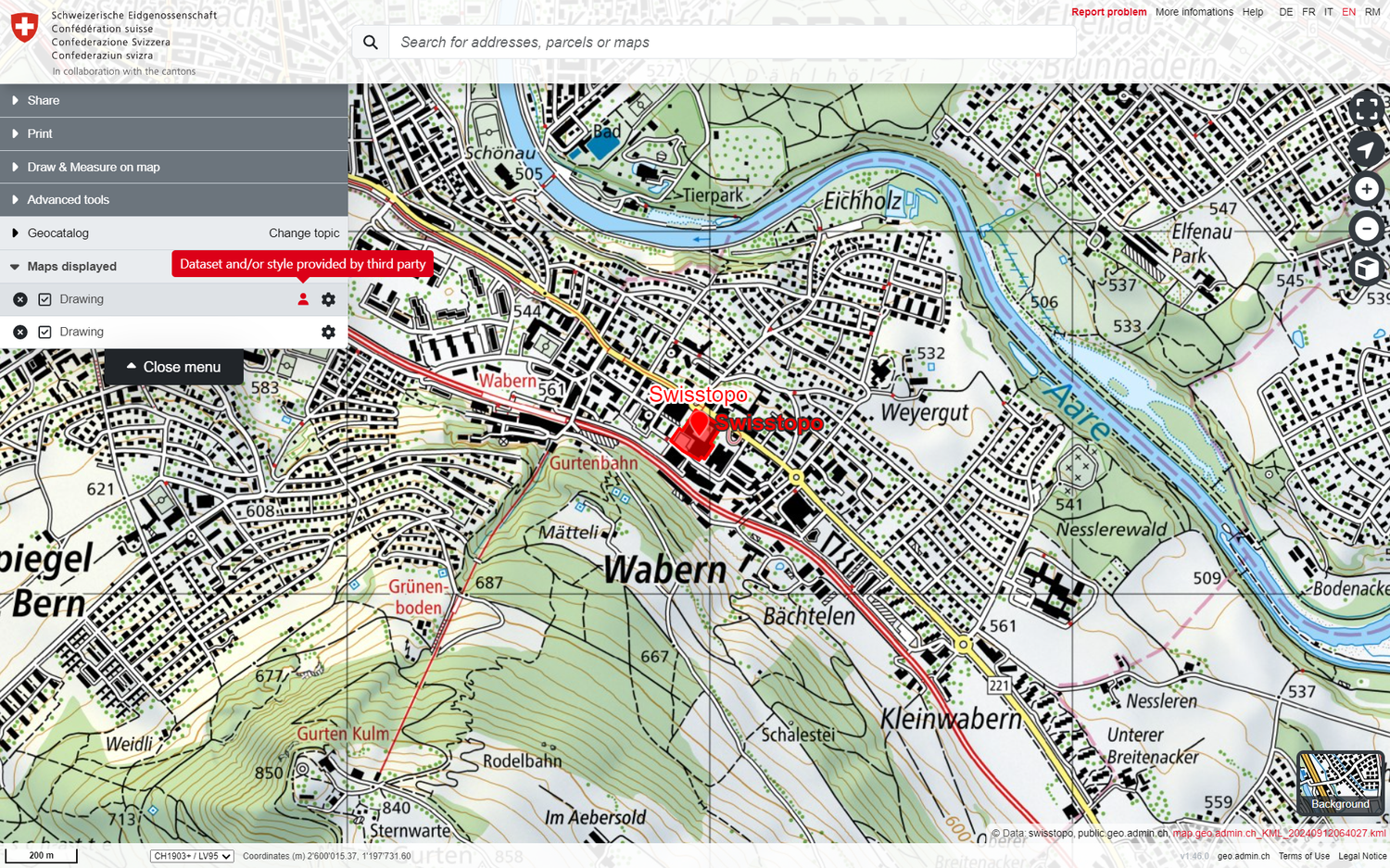
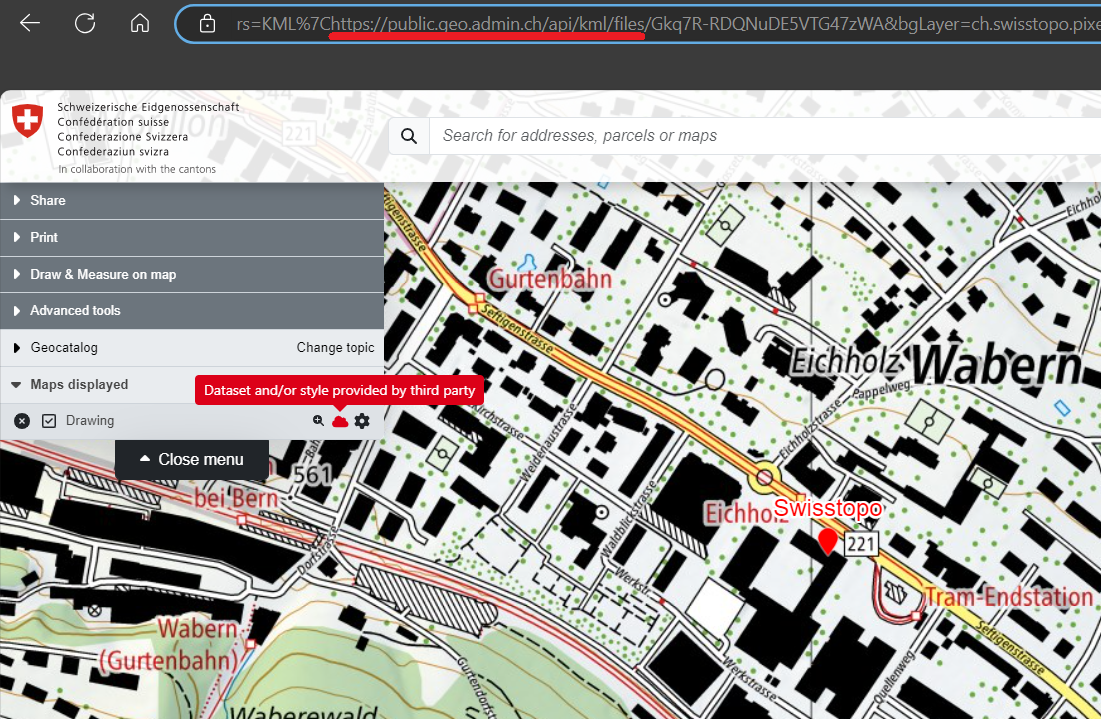
, it must contain in part of the URL a piece of code containing: "https://public.geo.admin.ch/api/kml/files/...". If this is the case, though it contains the red profile added in the "Maps displayed" section of the menu indicating that you’re not (anymore) identified as the owner, this KML is saved in the backend of the map.geo.admin.ch system and can therefore be shared, embedded in an iFrame and exported as a PDF print.
Attention: If you enter the "Draw & Measure on map" tool in order to edit that KML / GPX file, the system will create a copy of the original including the drawing. This copy will become your property and you will be able to export it and share it as your own, but the original KML from which the copy has been made will not be edited. The copy will therefore appear as your drawing in the Displayed maps section of the menu without red profile.
4. An external KML, KMZ or GPX file stored online
Once finished a KML / KMZ / GPX file, it has also the possibility to be saved online in an external server / cloud system like Dropbox, Google Drive, GitHub, etc. and imported in map.geo.admin.ch by URL via the "Advanced tools -> Import file" function of the menu. Though the system still won’t recognize your uploaded file as yours by putting the red profile in the layer of your drawing in the "Maps displayed" section of the Menu, the system will have access to it online and, contrary to the local file, allow you to share it, embed it in an iFrame and export it as a PDF print. In order to do so, we have created dedicated instructions on how to publish your KML file online.
Edit and share your drawings
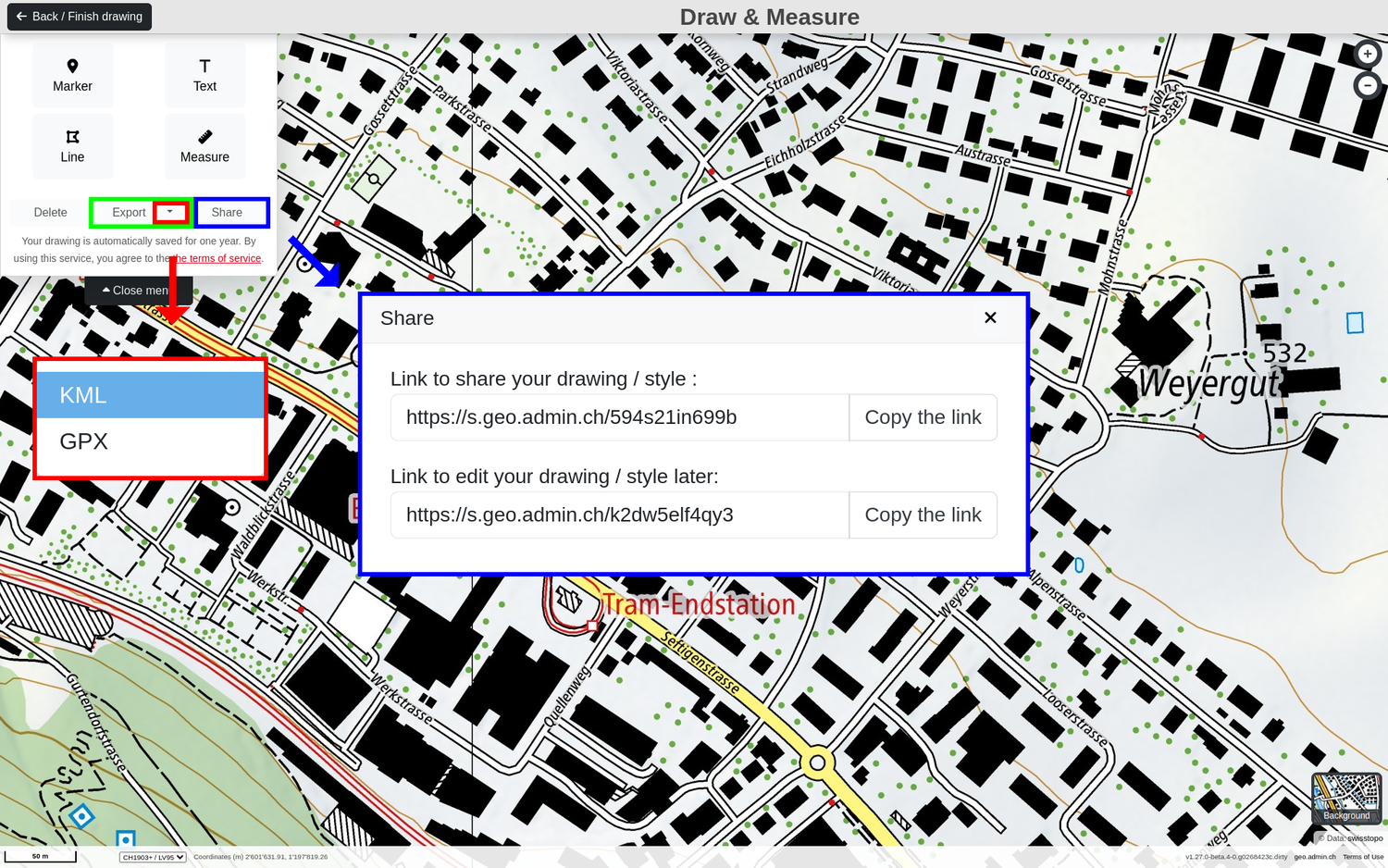
We would like to underline, that while in the Drawing & Measuring mode is on, you have the possibility to save and share your drawings in 2 different forms with short links when clicking the "Share" button:
1. Link to share your drawing / style
This short link allows you to share the current drawing/measurement and the current map configuration (zoom level, data sets, etc.). Specifically, this link opens a new window of map.geo.admin.ch with the drawings and/or measurements and displays them under "Map display" as "Data and/or style from a third-party provider".
The original KML file cannot be edited via this link.
Note: The drawing accessed via this link can be further edited in drawing mode, although a new drawing is created in the background. The original drawing remains unchanged.
2. Link to edit your drawing
This short link allows third parties to edit the original drawing. This means that the link opens a new window of map.geo.admin.ch in Draw & Measure mode on the map, in which the drawings and measurements contained therein can be further edited.
This link can also be shared with others for editing (at your own risk) and must be stored in a safe place. If this link is lost, the original drawing can no longer be edited!
External / Third party datasets
You might have noticed that sometimes, your KML or GPX files displayed in the «Maps displayed» section of the Menu contains a red profile warning you that the dataset or style comes from an external source. This, and the text that appears with it, warn our users about the fact, that this is an external dataset where the eventual terms and conditions of the third-party data owner apply and have to be respected. This will also be implied in the down-right corner of the map where the copyright will include the name of the datasets that have been uploaded in red. Depending on the type of KML / GPX file, this red profile will appear or disappear. Please inform yourself on the types of KML / GPX files in the «How does the system differentiate the KML and GPX files?» section above.
Instructions for editing KML files yourself (outside of map.geo.admin.ch)
In this section, we provide a small collection of tips and simple tools for editing KML files outside of map.geo.admin.ch. This section does not claim to be complete. For further information, please refer to the external sources linked below and to the OGC standard for KML.
Note: All KML files generated in map.geo.admin.ch comply with the Google standard, the inventors of KML files.
To edit a KML file, we recommend using a text editor such as Notepad++ (which is used for the examples given below), Editor, WordPad and also Microsoft Word. Further possibilities exist with professional GIS systems or Google Earth. These possibilities will not be discussed in detail here.
Note: After editing, the file must be saved again with the extension ".kml".
How can I change the NAME and DESCRIPTION of a Point / Line / Text / Polygon in my KML file?
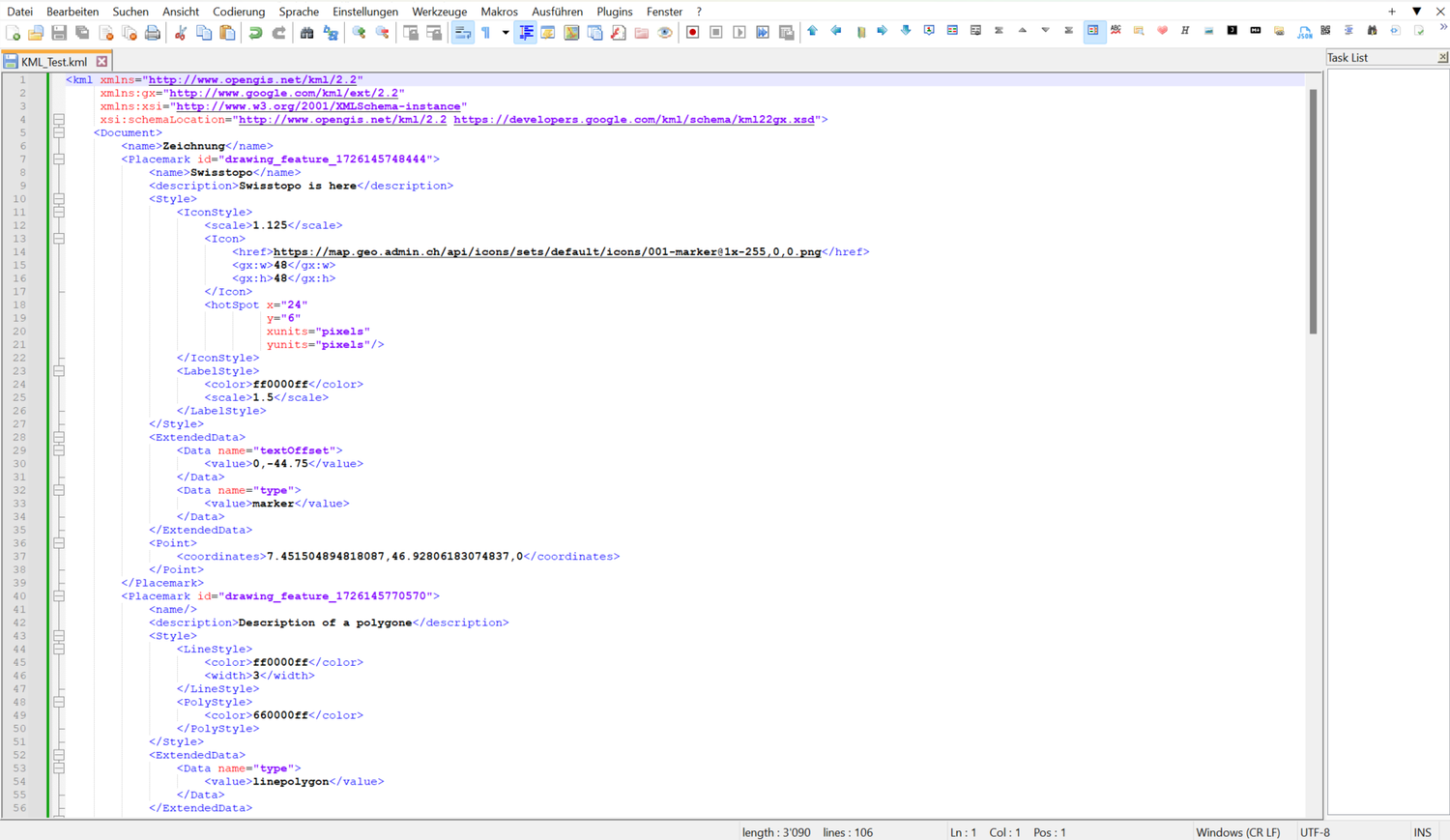
Every single element of your KML file contains a and parameter that can be edited. Here an example:
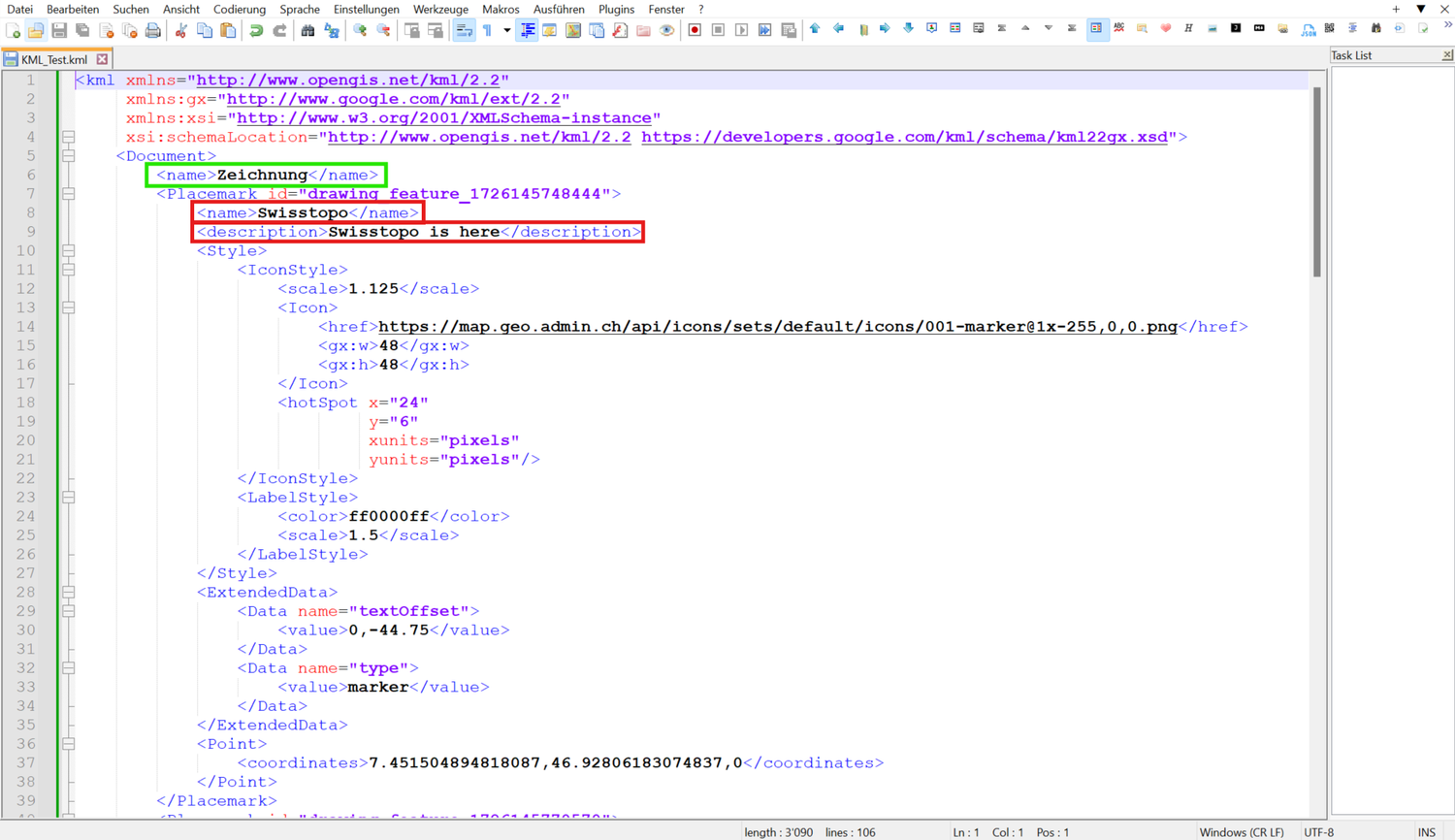
Note: You might have noticed that there is another parameter on the top. This is the name of your KML and is also perfectly editable from "Drawing" to "My awesome KML file" for example.
Warning: Only texts do not have a parameter, as they are already a text.
How can I change the COLOUR of the lines of my KML file?
Every single element of your KML file contains a parameter, however only the texts, lines and polygons are editable and most colour palettes are not yet supported by our system. Here an example:
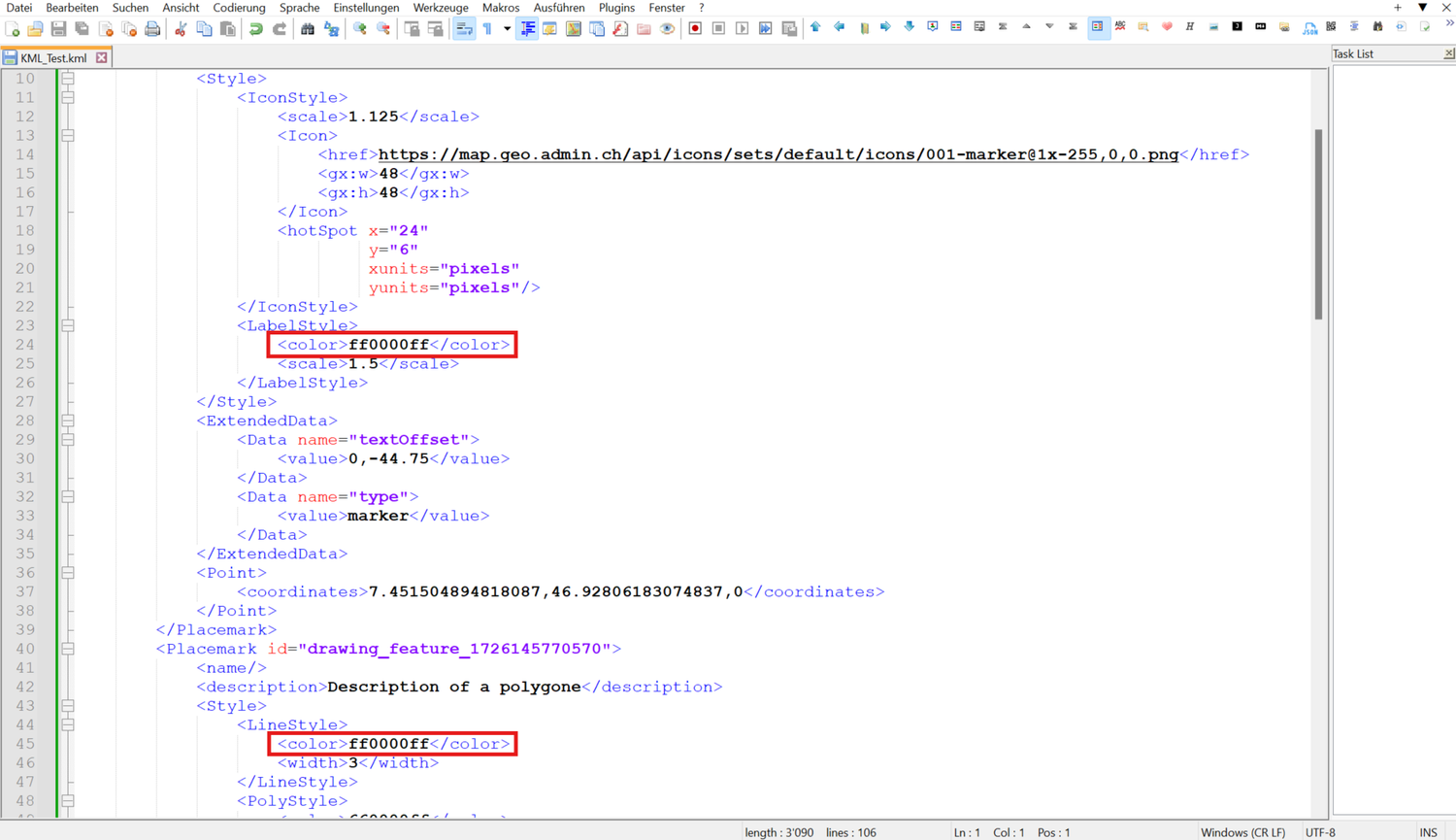
Here is an example of some supported values:
- Red - ff0000ff
- Yellow - ff00ffff
- Blue - ffff0000
- Green - ff00ff00
- Purple - ff800080
- Orange - ff0080ff
- Brown - ff336699
- Pink - ffff00ff
For more information concerning how to change the colour of your KML elements, visit: https://developers.google.com/kml/documentation/kmlreference#elements-specific-to-balloonstyle
How can I change the WIDTH of my line / SIZE of my point?
In order to better see the lines in map.geo.admin.ch, one can also change their width with the parameter or see your points better changing the parameter. Here an example:

How can I change the POINT SYMBOLOGY of my KML?
map.geo.admin.ch has a wide range of point symbols available. However, it is possible to export a map.geo.admin.ch drawing as a KML and assign your own custom point symbols. To do this, change the URL in the <href> parameter of the exported KML as shown here:
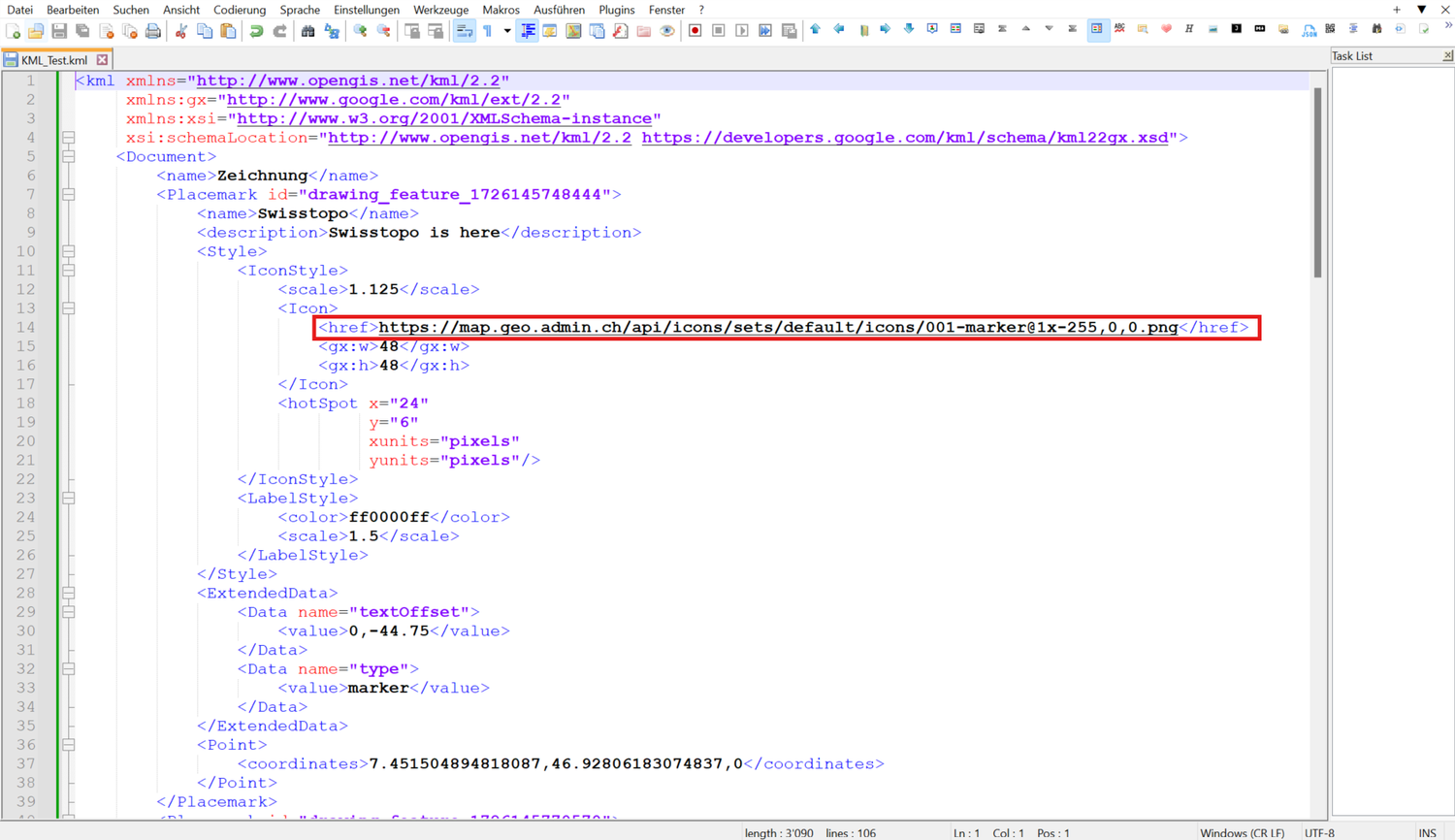
Attention: In order to ensure that your symbols are correctly displayed, they have to be CORS conform. The most common problem arises because the URL is not secured and calls from a HTTP site, whereas we only support HTTPS sites. More information on the subject can be found here: https://enable-cors.org/server.html or https://developer.mozilla.org/en-US/docs/Web/HTTP/CORS
For more information and instructions on how to edit KML and GPX files, please visit KML Tutorial | Keyhole Markup Language | Google for Developers
Frequently asked questions concerning the editing, sharing and displaying of KML / GPX files
Many questions regarding the use of KML and GPX files have been sent to us over the time. These have been collected and answered, but only the user asking them could benefit from it. Here we propose a recollection of the most frequently asked questions for you to find a possible answer to your question.
- How come that the KML/GPX file that I drew in map.geo.admin.ch, exported on my laptop and then uploaded back to map.geo.admin.ch is not recognised by the system as my drawing? Why can't I edit my imported KML/GPX file?
map.geo.admin.ch does not have write access to your local computer and thus to the imported file. The file appears in the menu with a red notice indicating that this data set was provided by a third party and can therefore only be viewed.
Note: A drawing exported from map.geo.admin.ch is also treated as an external file if it is reimported into map.geo.admin.ch.
- If I draw a polygon, can I edit it back to a Line?
No, the system changes the line irreversibly to a polygon. You will need to draw again the layout of the line.
- When I export a text and / or measurement as a GPX file, it’s not displayed. Why not?
GPX files do not support text and therefore measurements, as they contain texts. Texts will be then displayed as a point symbol and the text will be transferred to the description of the point, and the measurement will be displayed as a line or polygon but the measurements will be lost. When including text and / or measurements, we suggest to download the result as a KML file.
- When I upload an external KML / GPX file, the line(s) or polygon(s) appear white, while the points appear as yellow thumbtacks. Why doesn’t it show the original style of the drawing?
The most probable cause for this issue is, that the KML / GPX file contains no style parameter, or the style parameter doesn’t follow the KML standard. We suggest you to adapt your KML / GPX dataset adding or adapting the style parameter.
More information on how to adapt your KML file can be found here.
- When I edit some elements in my KML / GPX file, they tend to disappear when I open the file again. Why is that happening?
The most frequent issue could be, that the dataset that you’re trying to edit is seen from the system as a third-party file and it won’t allow you to edit it. Please check in the Maps Displayed section of the menu if the drawing that you’re trying to edit has a red profile. If so, then you’re most probably drawing "over" your file without editing it because it is seen as an external KML / GPX file by the system. Remember, once finished KML / GPX files that have been uploaded or reloaded in map.geo.admin.ch cannot be edited as they’re seen as third-party files.
- My drawings and measurements will be automatically saved for one year. Can I edit the drawing again right before the end of the year to extend the saving period?
Indeed, following the General Terms of Use and Operating Conditions of the Federal Spatial Data Infrastructure FSDI, your finished drawings will be saved for 1 year. Provided your link is editable, every time you edit something it will be saved in the same link and the countdown will be resettled to 1 year.
- If I finished a drawing and exported it as a KML / GPX file, but accidentally reloaded the page, the same file I just draw is recognized as an external dataset. Why?
The map.geo.admin.ch system doesn’t use cookies; the system is therefore not able to detect that drawing as yours. Reloading the page will therefore detect you as a new user and consequently not attribute that drawing as yours.
- What happens if I have multiple editable files in my "Maps displayed" section of the menu and I want to edit one of them. How can I know which one will be edited?
If you find yourself with more than one dataset, only the dataset on the top of the list will be edited as long as it is a KML file generated on map.geo.admin.ch (see the "How does the system differentiate the KML and GPX files?" chapter above). You can drag & drop the desired file to the top of the Maps Displayed section of the menu.