Import and compare maps
The fourth function menu item contains the following useful advanced tools
Back to the main help page
Importing maps and files
Map.geo.admin.ch supports the integration of your own or external map (services) if they fulfil certain standards:
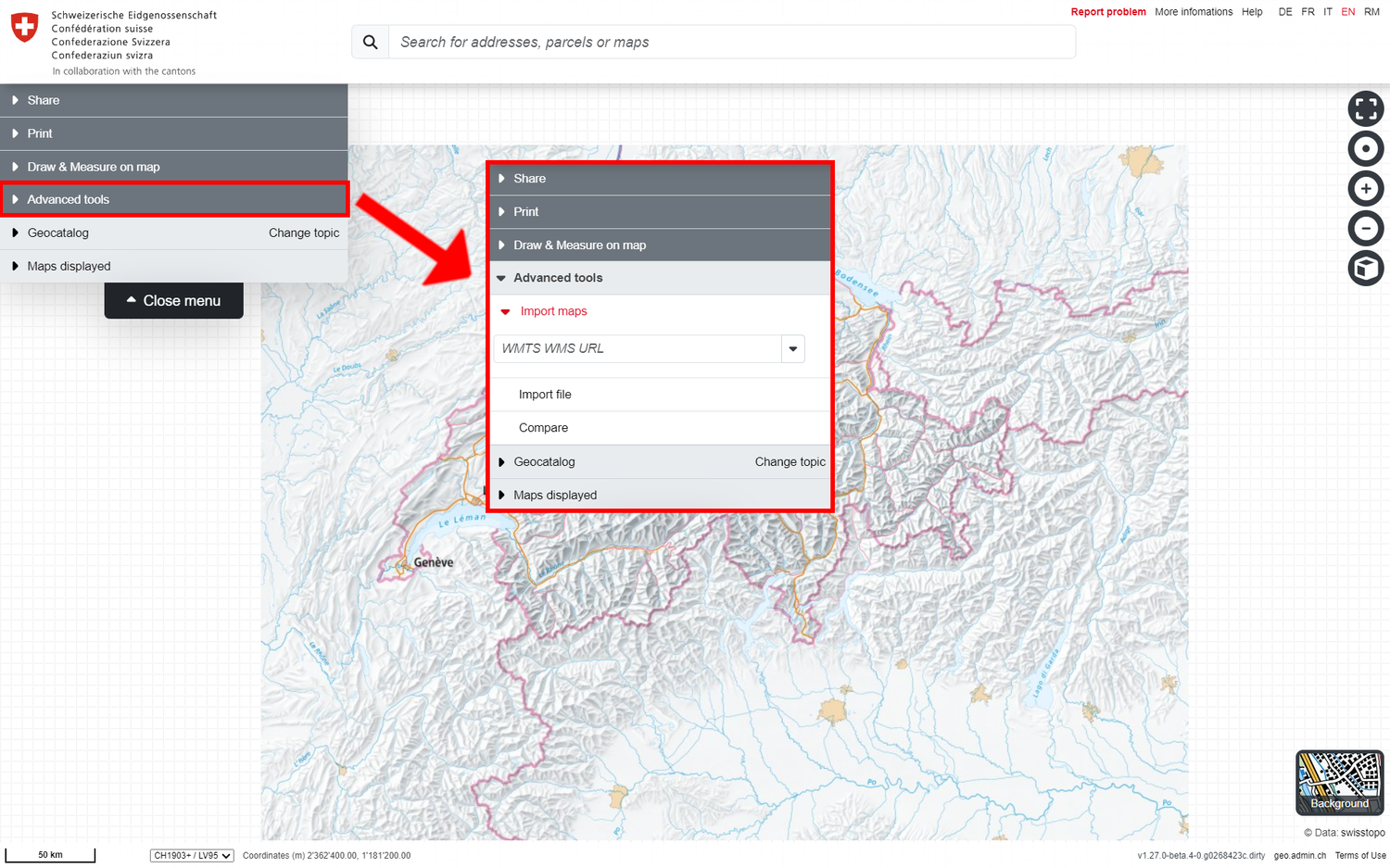
Import maps
With the "Import maps" tool, you can integrate external maps from WMS (Web Map Service), WMTS (Web Map Tiling Service) sources or file sources via URL:
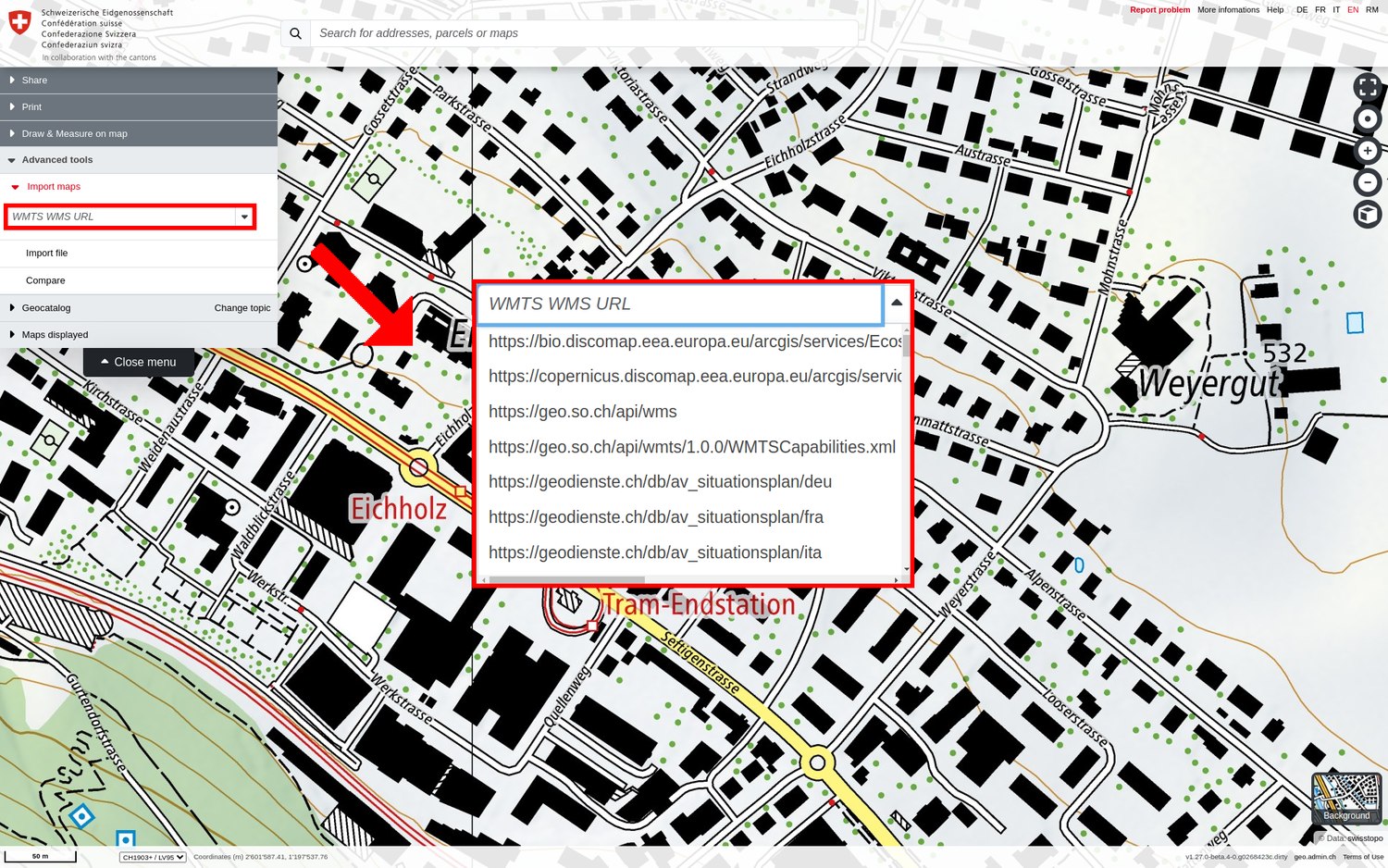
- Select a map service from the list of available WM(T)S that appears when you click on the ▼ symbol (to the right of the field). map.geo.admin.ch maintains a list of known geoservices, sources from other Swiss authorities and European providers.
- The source can also be entered as a URL (to the GetCapabilities call of an (own) WM(T)S service or to an (own) KML or GPX file (with file extension *.kml / *.gpx).
Notes:
- Only WM(T)S services that comply with the WMS OGC standard or the WMTS OGC standard can be displayed. You can find test services here.
- The map viewer supports the following spatial reference systems for WM(T)S: CH1903+ LV95 (EPSG:2056), CH1903 LV03 (EPSG:21781), Pseudo-Mercator (Google, Bing, OSM; EPSG:3857), WGS84 (EPSG:4326). More information and links can be found in the help page of the basic functions under the heading «Position tool / Centre on coordinates / Coordinate display».
- The WM(T)S datasets are often only visible from a certain scale and therefore the map must be zoomed to a corresponding section in such a case.
- The performance of external WM(T)S services, as well as their availability, depends on the infrastructure of the responsible provider and is therefore beyond the control of geo.admin.ch.
Import file
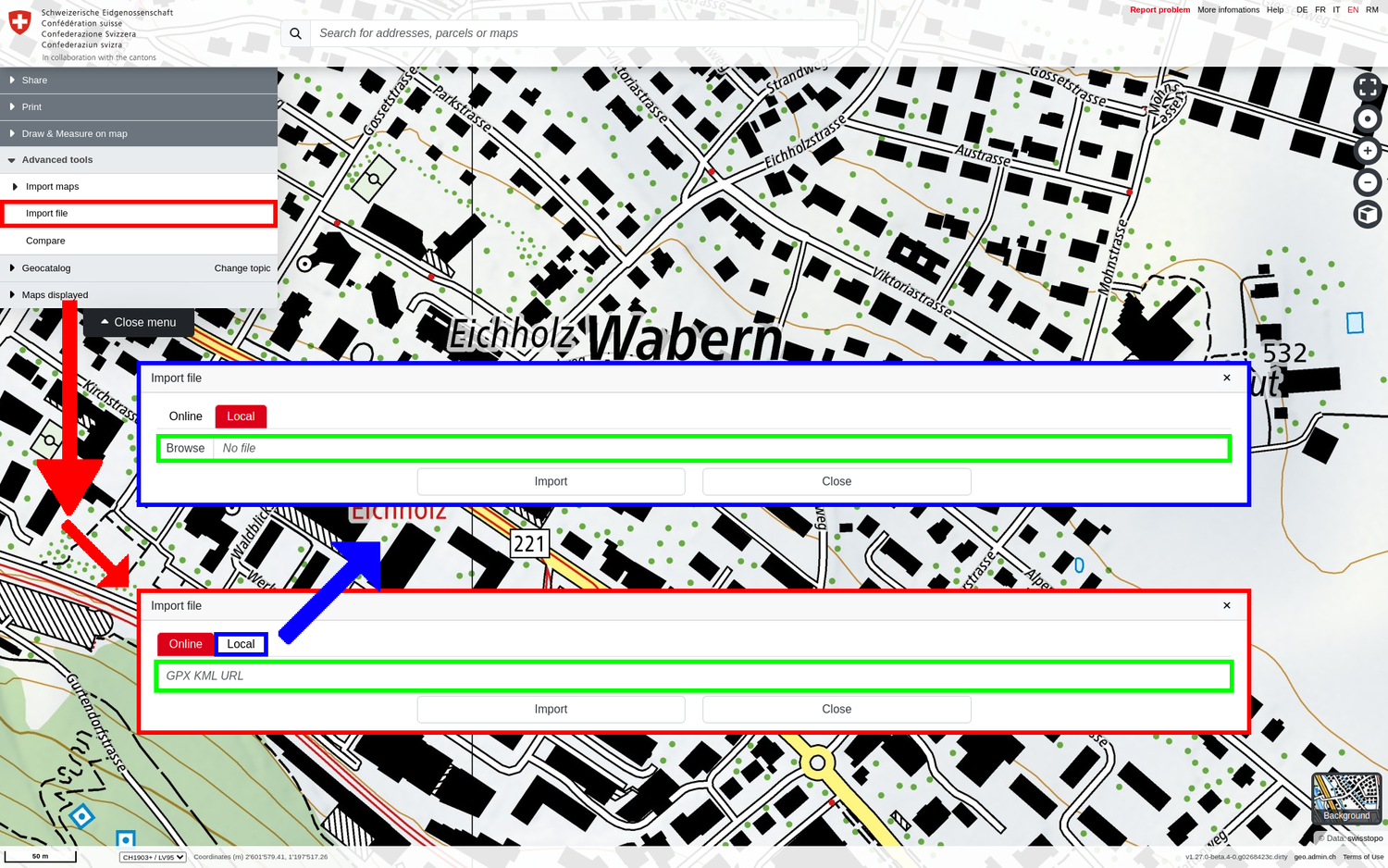
The "Import file" tool allows you to import GPX, KML or KMZ files in the map viewer. You have two options:
- Online: You have saved your file on a web resource / web server. Then you can enter the URL with the file extension *.kml, *.gpx *kmz in this field and integrate the file into the map. With the «Online» option, the integrated file is also accessible to other users via the «Share» functions.
- Local: The file can also be imported from a local drive/data carrier in the map.geo.admin.ch drawing. This is only accessible to the local user and therefore cannot be shared with others.
Thanks to the "drag and drop" system, you can also simply use your mouse to drag your KML, GPX or KMZ file on the map and you will be zoomed directly onto its elements.
Presrequisites:
- GPX: Only GPX files that contain the element types waypoint (wpt), route (rte), track (trk) and elevation ((elev) only in 3D) and correspond to the GPX 1.1 format can be displayed without errors.
- KML: Only KML files that comply with the KML OGC standard can be displayed without errors. A simple tool for checking KML files can be found here.
- In both cases: Make sure that the server which hosts the files you want to import (i.e. KML or GPX), allows cross origin access for map.geo.admin.ch. The same applies for any icons that might be referenced from inside those files. Check e.g. here or here for more details.
Compare
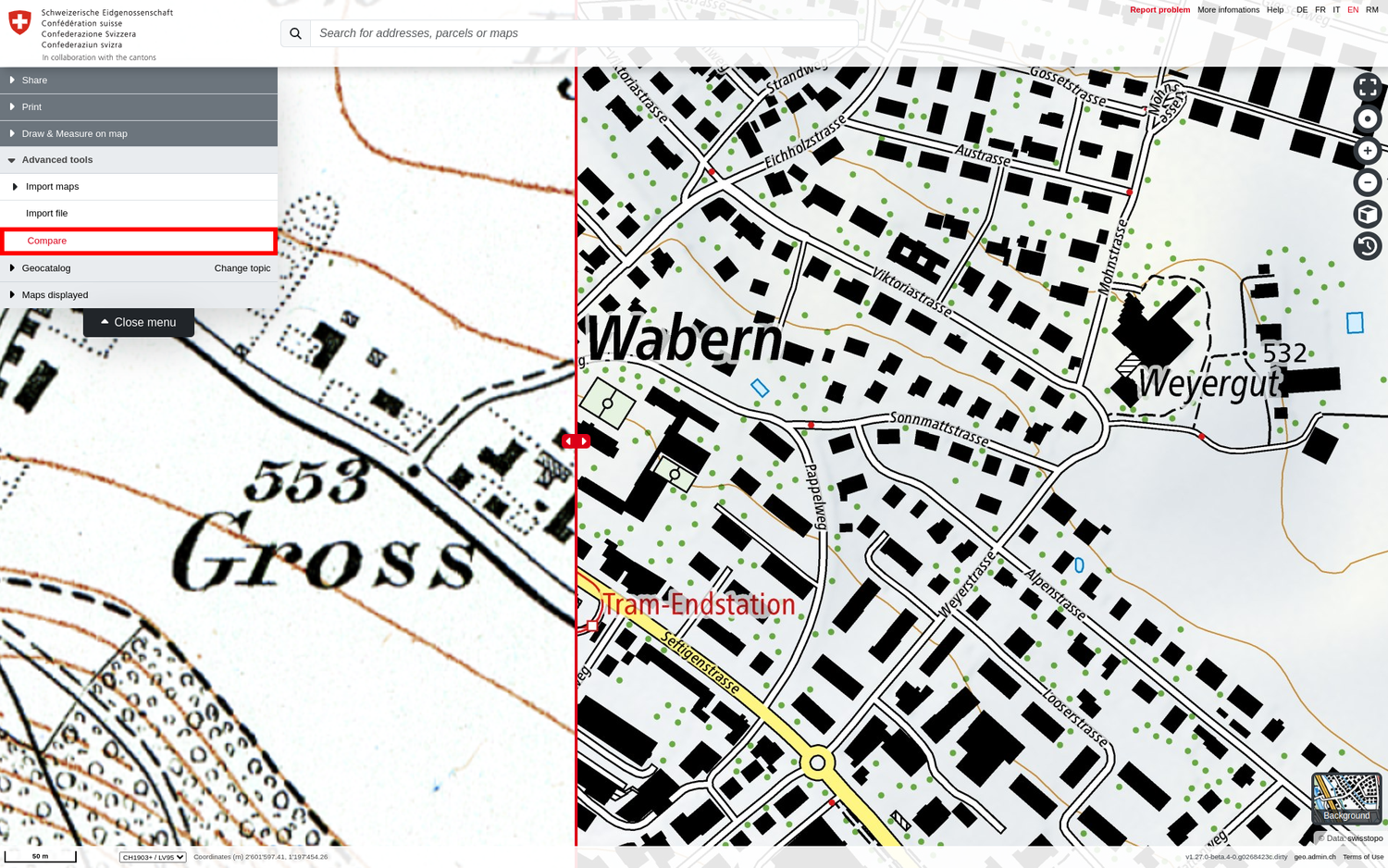
The "Compare" tool is used to visually compare superimposed maps in a simple way. When comparing is active, a vertical red line with a double arrow appears in the map window, which can be moved to the left or right as required using the mouse.
The geodata layer/map placed at the top of the "Displayed maps" menu appears on the left-hand side of the red line. If the order of the geodata layers/maps is changed, the map to be compared (at the top) changes accordingly.
Note: In order to use the "Compare" tool, at least one geodata layer must be loaded under "Displayed maps".