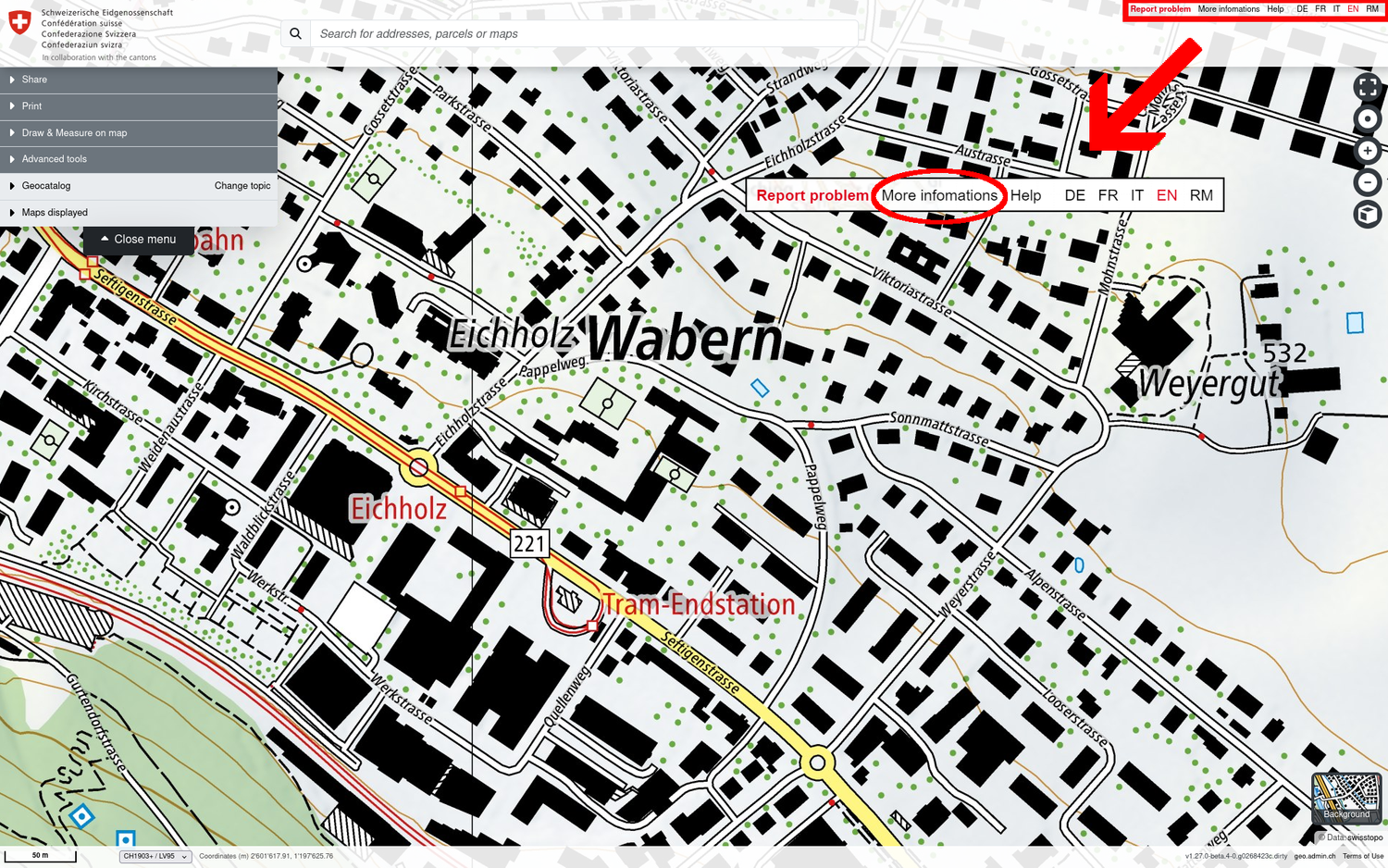
First steps: Basic functions of the map viewer
This section explains the basic functions of map.geo.admin.ch such as navigating, zooming, panning and searching.
Back to the main help page
Change language
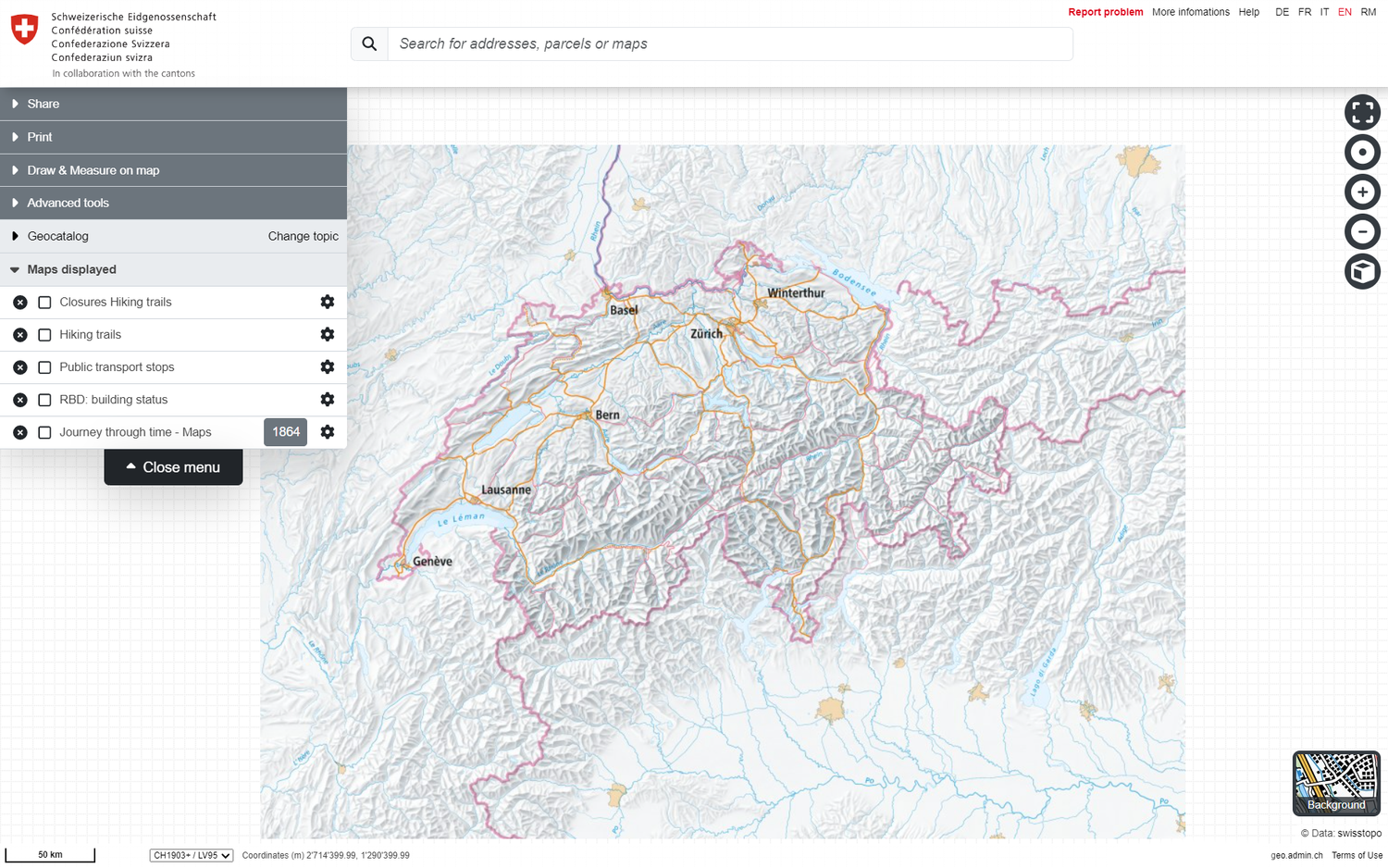
The application recognises the language configured by the browser, i.e. if your operating system is set to English, the map viewer will automatically appear in English.
The language of the application can be changed at the top right of the application. All 4 Swiss national languages and English are available.
Move the map (panning)
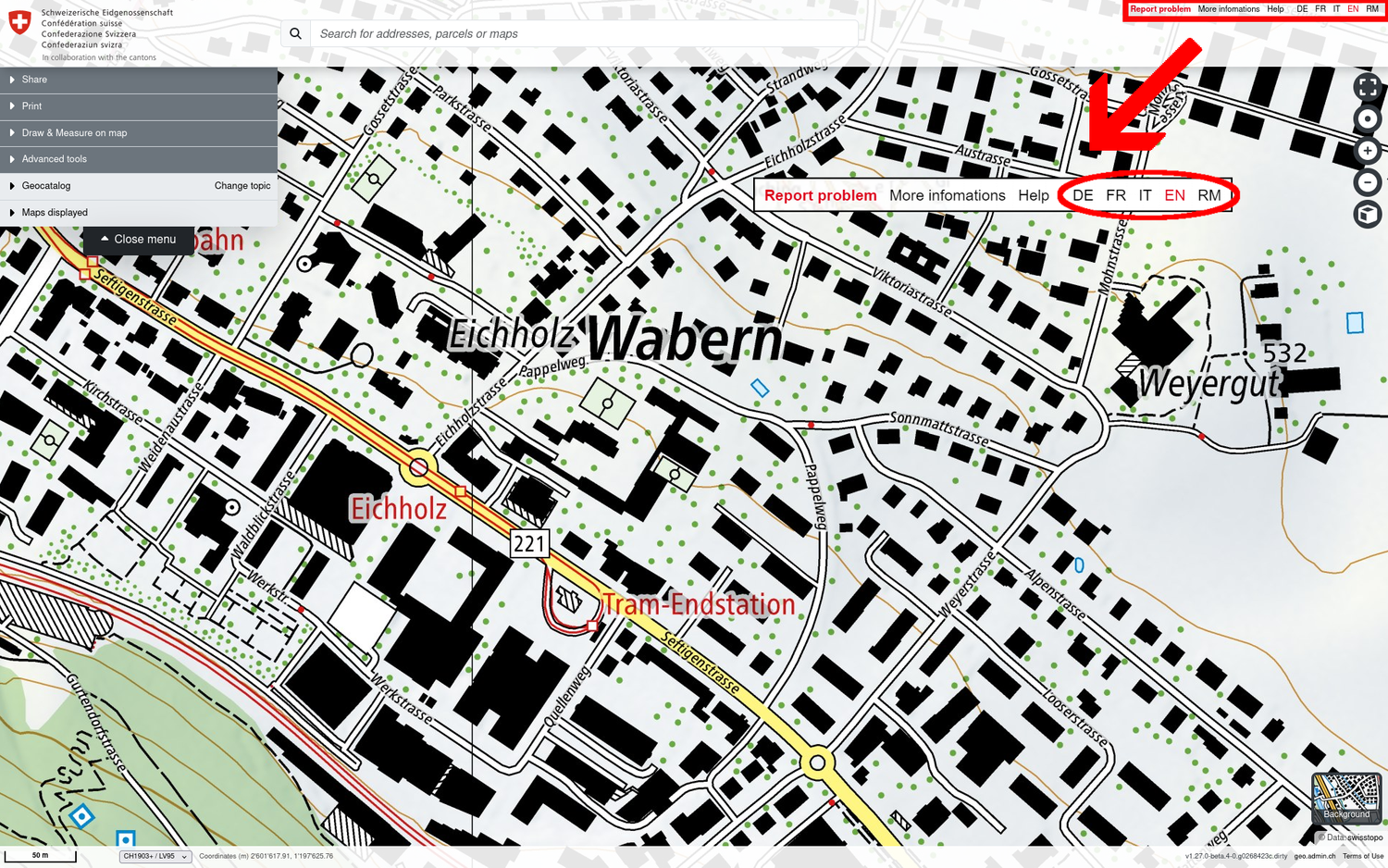
To move the map (so-called panning), hold down the left mouse button while moving it in the desired direction.
Change the orientation of the map / Turn the map
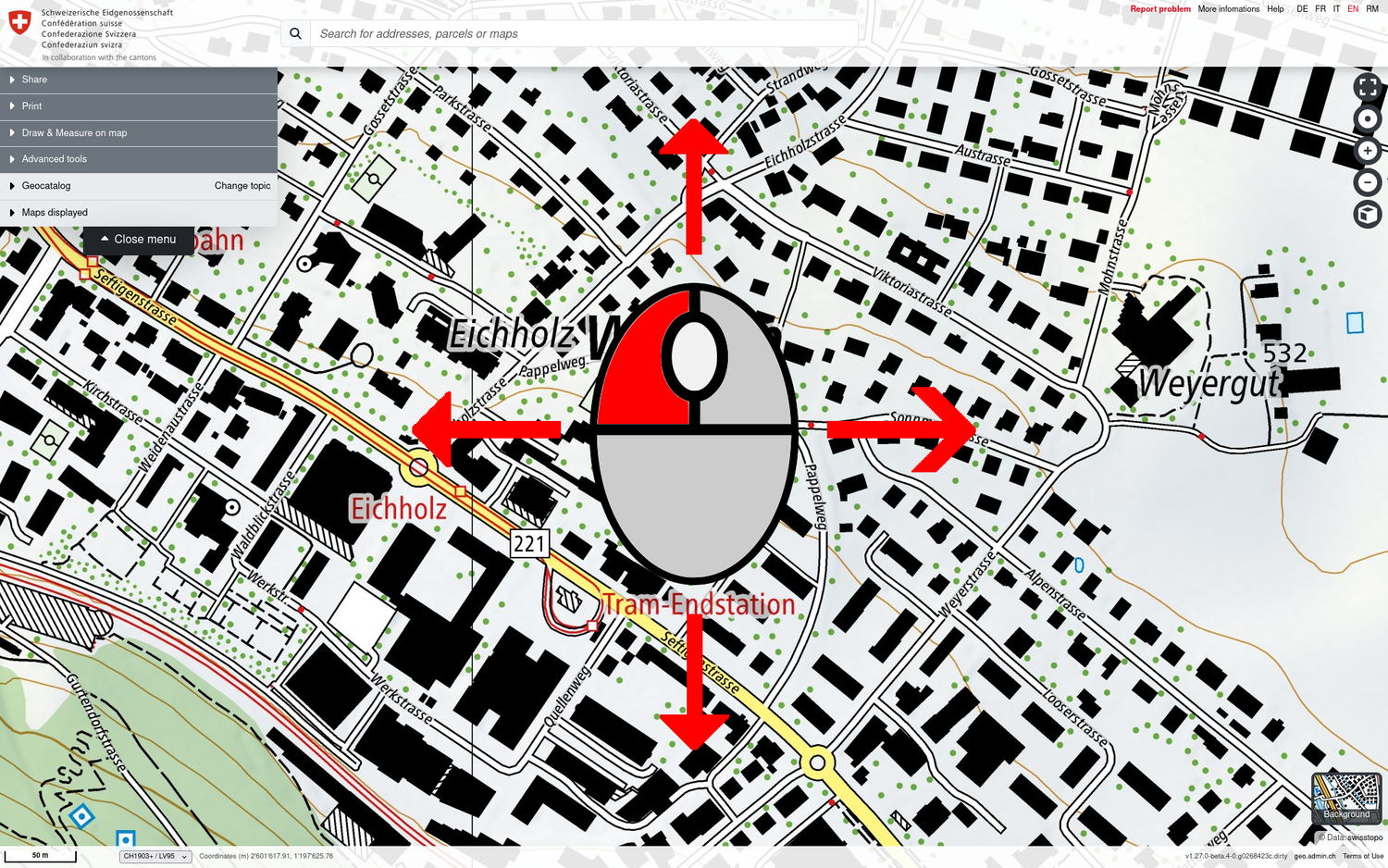
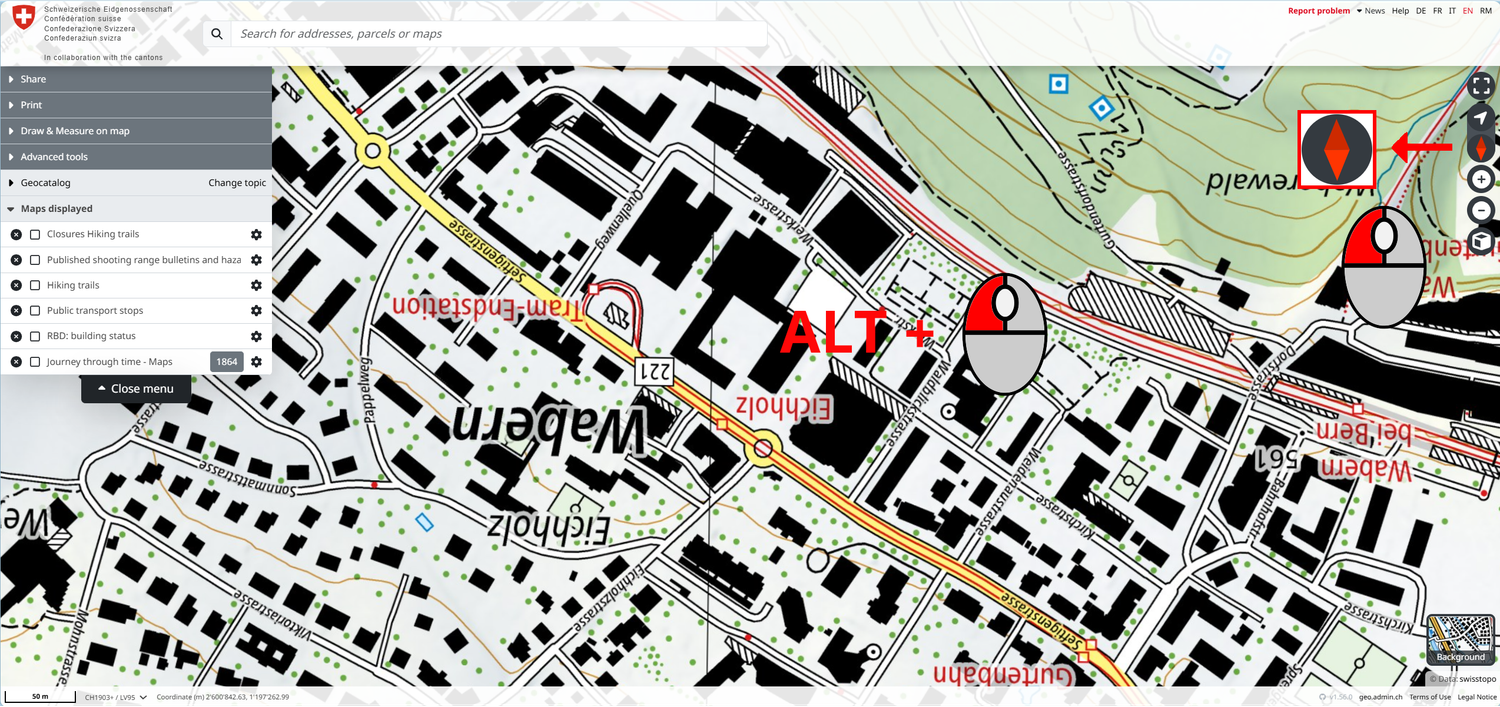
Hold the ALT key and the left mouse button together and move the mouse in the desired direction to turn the map. By default, the map application is orientated to the north.
When the orientation is changed, a red compass icon appears in the top right-hand corner. Click on it to reset the map to north orientation.
Change zoom / scale
You have 3 options for enlarging or reducing the scale:
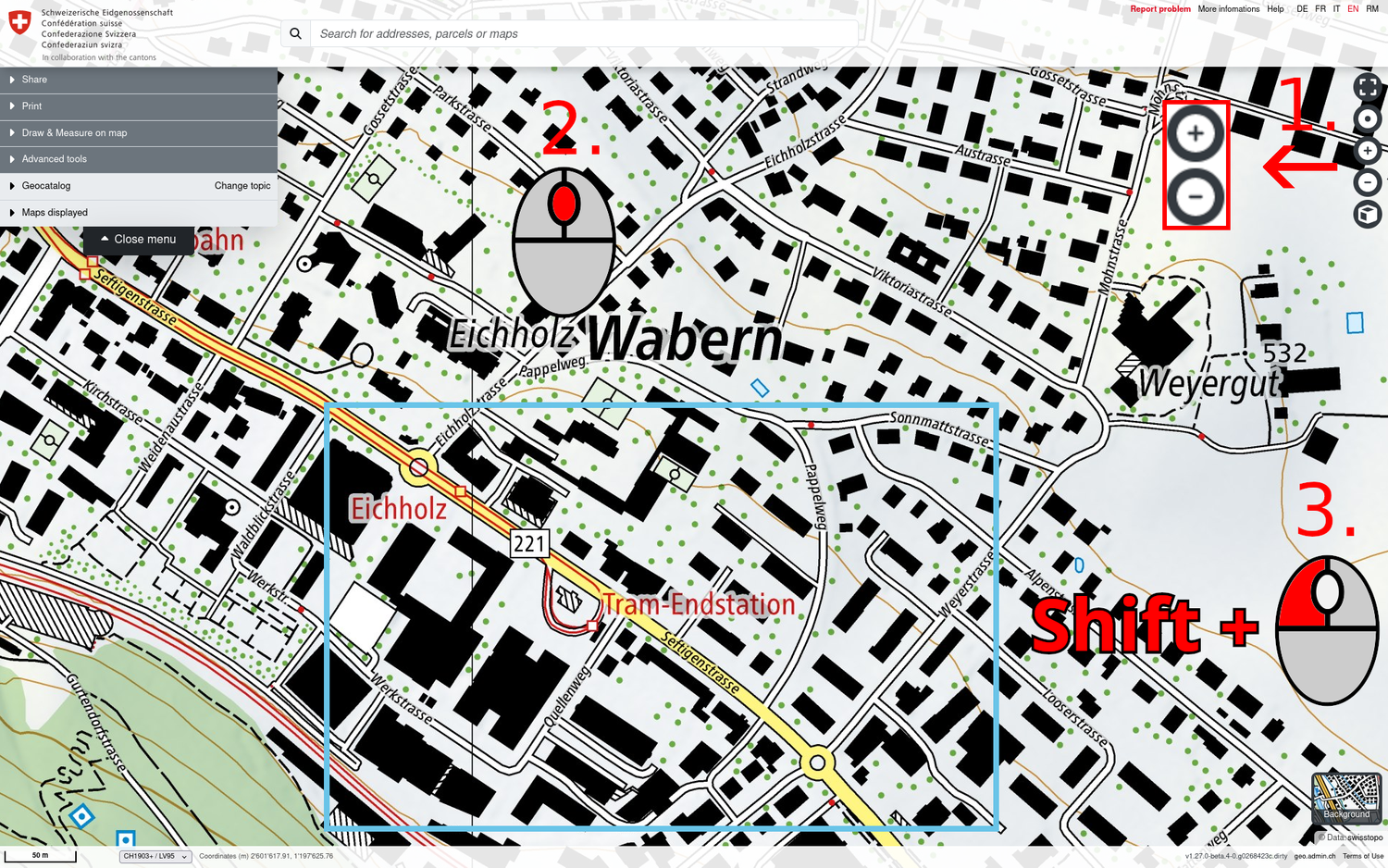
- Click on the «+» or «-» icon at the top right of the map viewer.
- Zoom in and out with the mouse scroll wheel.
- Rectangle zoom: by holding down the SHIFT key and dragging a rectangle on the map with the mouse, you can switch directly to a specific section.
Select background map
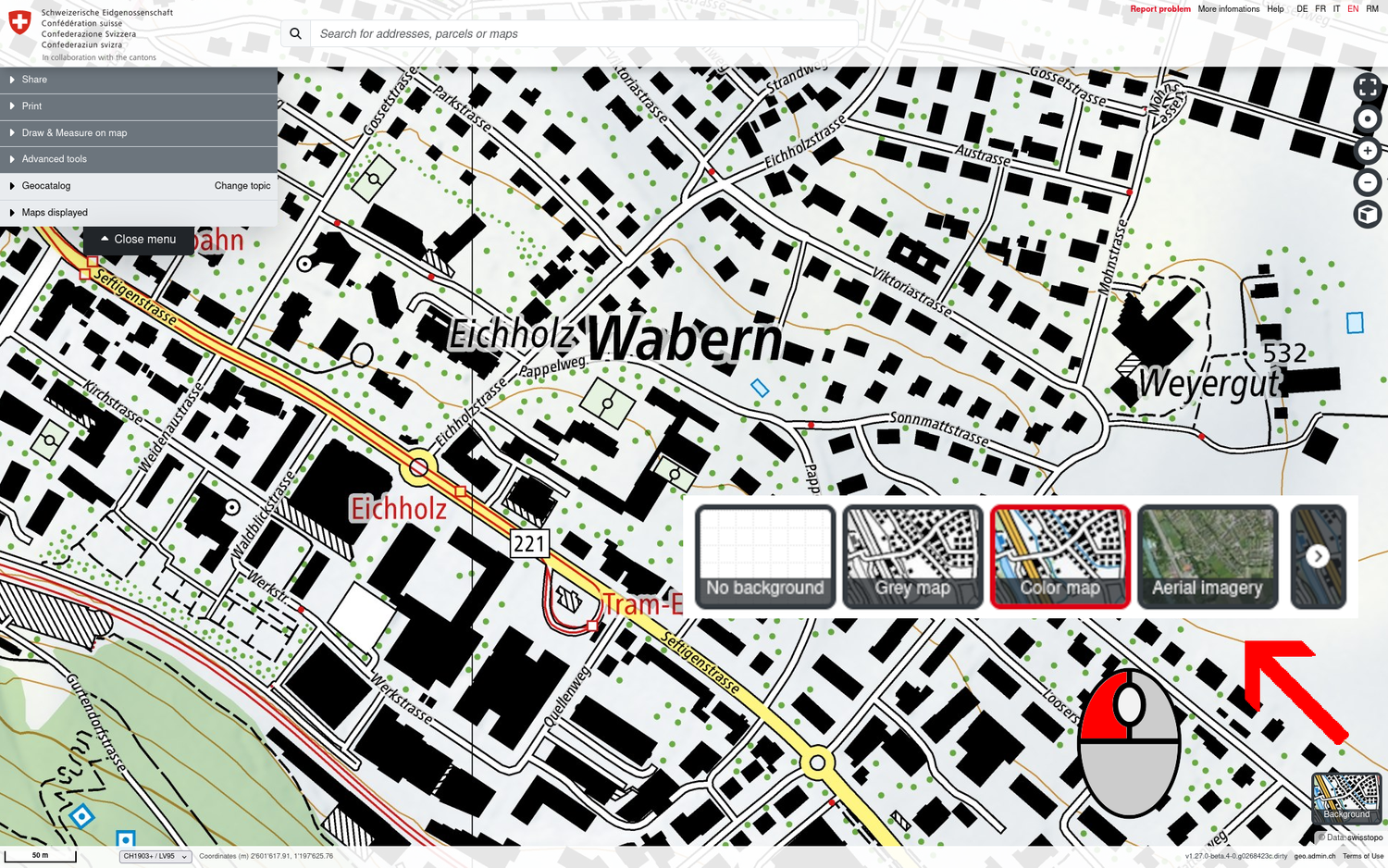
To make one or more thematic maps more visible, the following background maps can be selected at the bottom right of the map viewer:
- National maps of Switzerland coloured (Color map)
- National maps of Switzerland black and white (Grey map)
- Aerial photos (Aerial imagery)
- Empty background (No background)
Note: The background maps can change for specific thematic views (themes). However, these can always be changed using the background selector at the bottom right.
Tip: The coloured national maps of Switzerland are also available in the geocatalogue as individual layers for each map scale.
Search for locations and maps / geodata
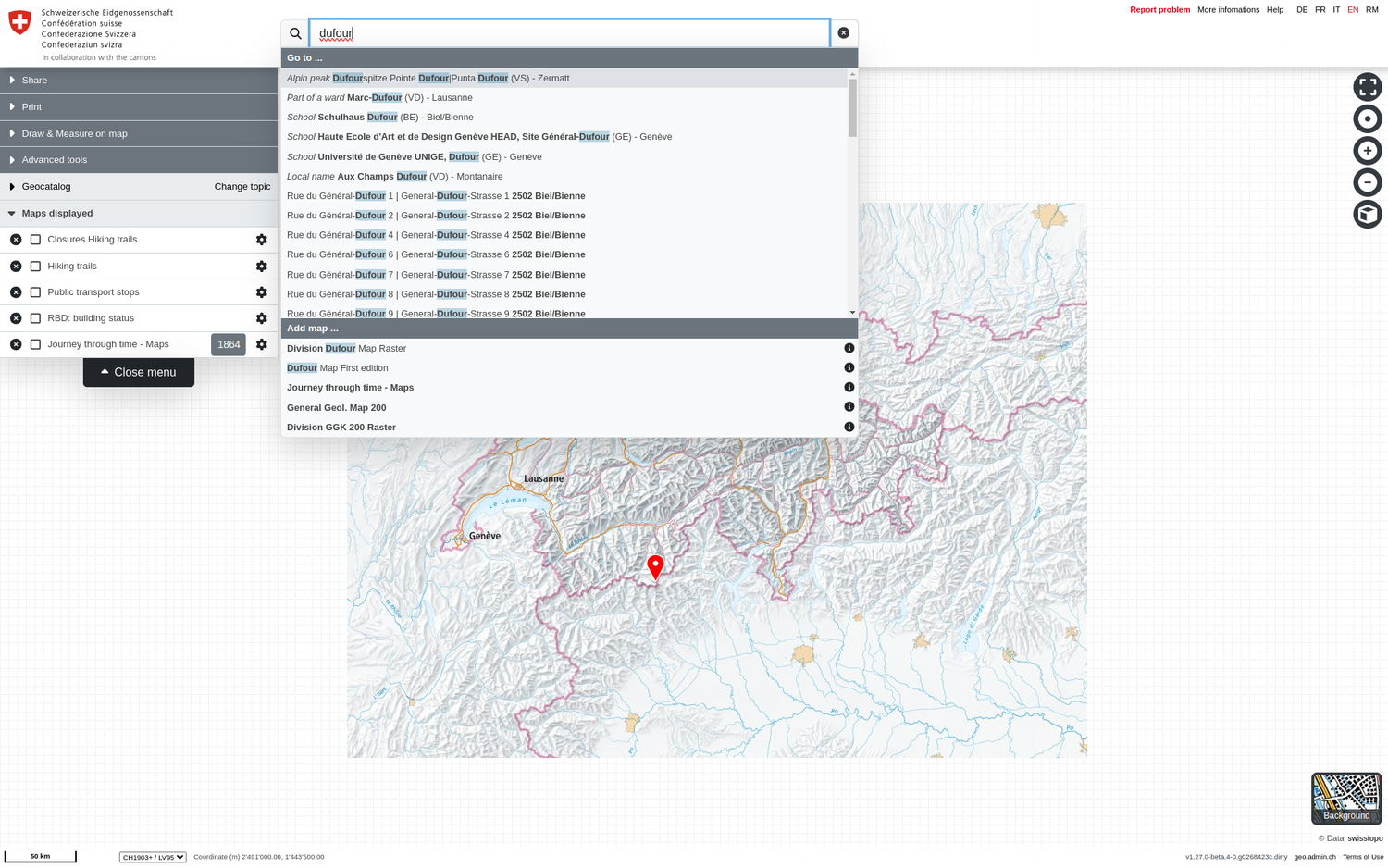
The «Search by address, parcel or map» field at the top centre of the map viewer provides immediate access to spatial units and geodata that are available. The search results are divided into the following two sections:
- Go to... All location search results are listed here, such as place and municipality names, postcodes, addresses, parcels or geographical designations (mountain peaks, settlements, valleys, areas, bodies of water, roads and facilities). When you click on a search result, the map application switches to the corresponding geographical object.
- Add map... All search results for which there are maps or geodata layers are listed here.
The search function returns the first results from just 2 letters.
Tip: If you move the mouse over the listed search results, the corresponding location or data record is displayed on the map (as a drop icon for locations or as a map for a data record search result). After you have selected the symbol, you can interact with it by selecting it to open the "Position" pop-up window.
Geolocalisation
The target icon at the top right allows you to determine your position using GPS. This function is particularly useful on mobile devices. If geolocalisation is activated, map.geo.admin.ch automatically switches to your current location and continuously adjusts it on the map.
Note: You must authorise the use of your location data in your web browser in order to use this function.
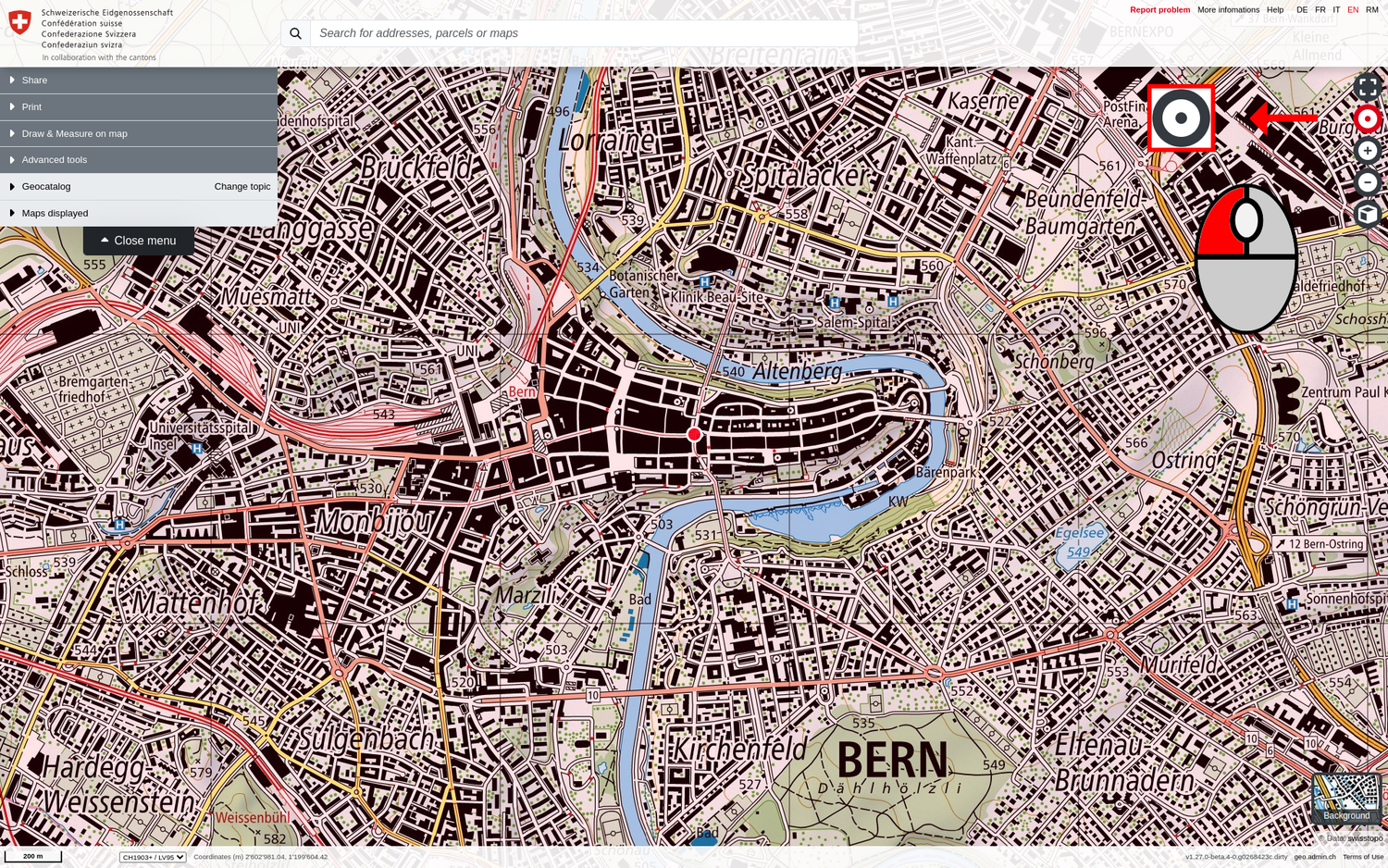
3D view
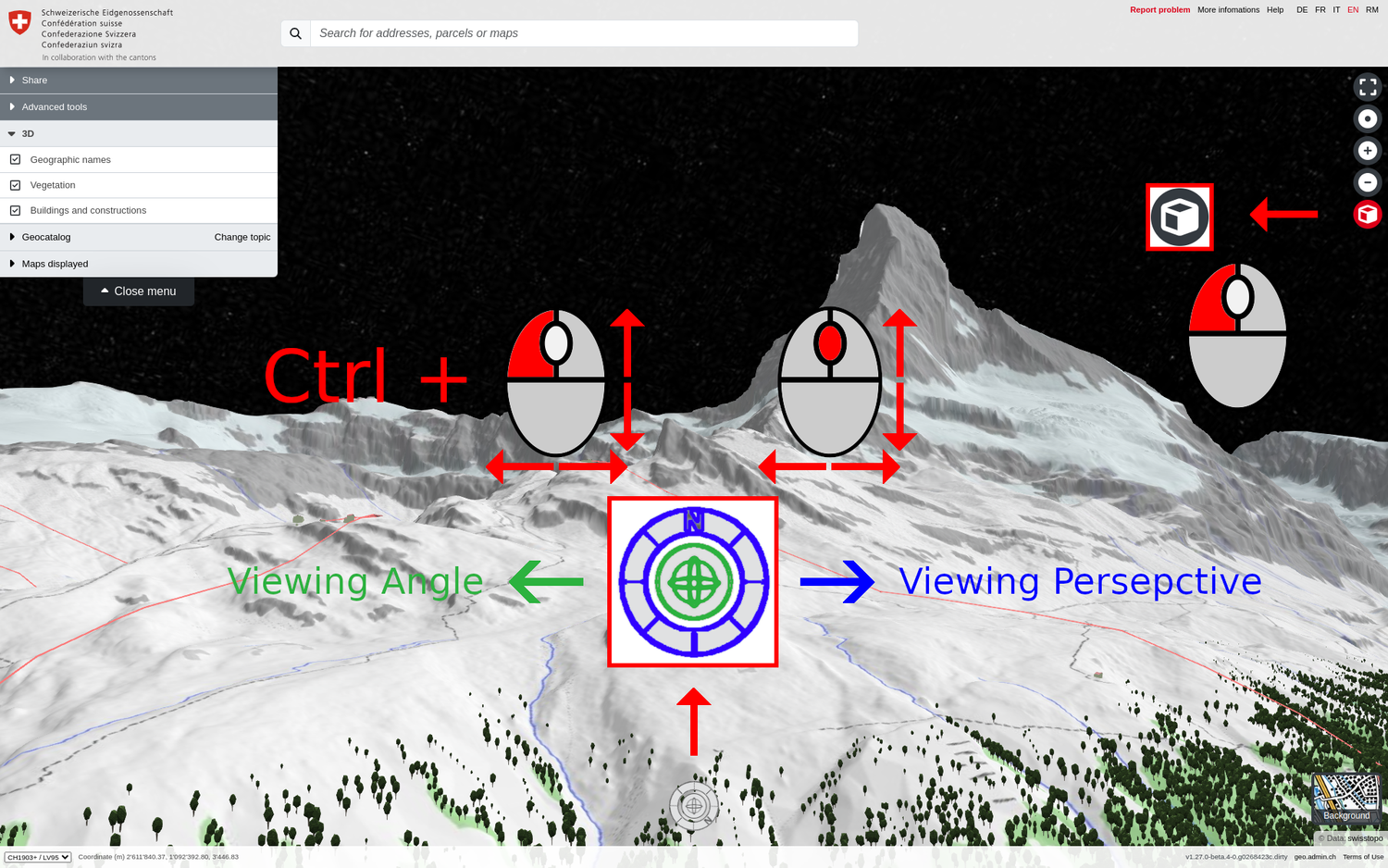
The 3D view is activated with the cube icon at the top right. The terrain model (based on swissALTI3D) and landscape elements such as trees, roads, bridges, cable cars and buildings (from the swissTLM3D and swissBUILDINGS3D databases) are available as 3D data and are visible by default.
All 2D datasets from map.geo.admin.ch can also be superimposed on the terrain model in the 3D view via the map search or the catalogue and visualised (with possible distortions).
As you will have noticed, the terrain has been raised and you can see the models of all the buildings (that have been captured) in Switzerland. A new navigation button has appeared at the bottom centre of your map viewer to allow you to move 360° around the map.
Tip: When the 3D view is activated, a new «3D» section appears in the menu. Here you can show or hide the 3D buildings, 3D trees and 3D place names to customise your navigation according to your wishes.
Caution: After you leave the 3D view, the orientation of your map will often not be northwards. As already described in the higher paragraph «Change the orientation of the map», you can reset the orientation by clicking on the red compass icon that automatically appears at the top right of your map.
Navigation on the 3D view
Basically, navigation in the 3D view works in a similar way to the 2D view, with the following differences:
- The 3D navigation icon is located at the bottom centre of your map viewer
- You can use it to change the viewing perspective (orientated to the north by default) by holding down the outer ring with the left mouse button and moving it.
- You can change the vertical viewing angle by clicking on the centre button with the mouse and moving it up/down.
Tip: The viewing perspective and vertical angle can also be changed simultaneously using the CTRL & left mouse button combination.
Note: The «Draw and measure» functionality cannot yet be used in the 3D view.
Full screen mode
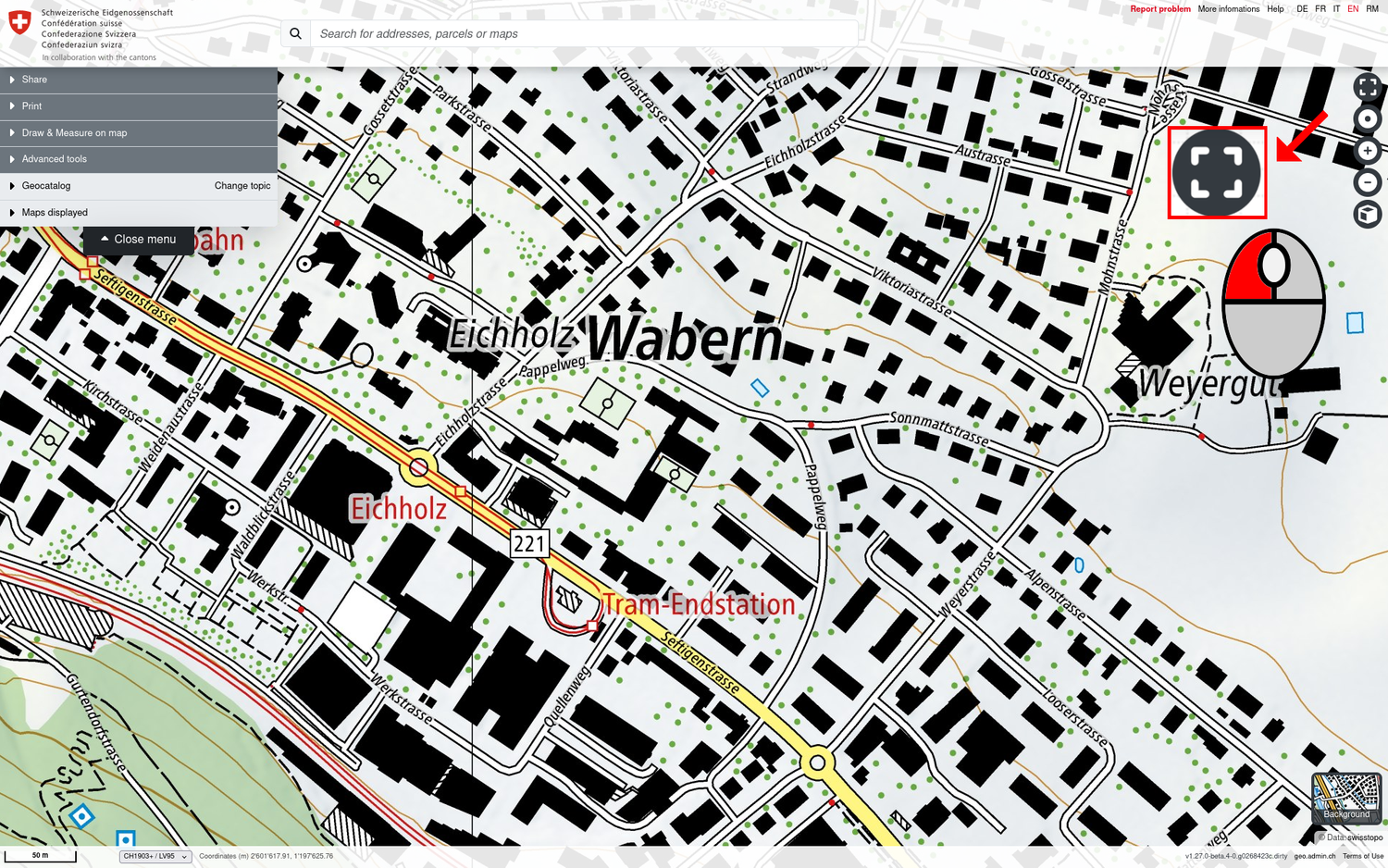
To activate or deactivate full screen mode, click on the full screen icon at the top right of the map. You can also deactivate it with the ESC key.
Tip: To cover the entire screen, you can also press the F11 key to activate the full screen mode of your browser.
Back to the start view of the map viewer
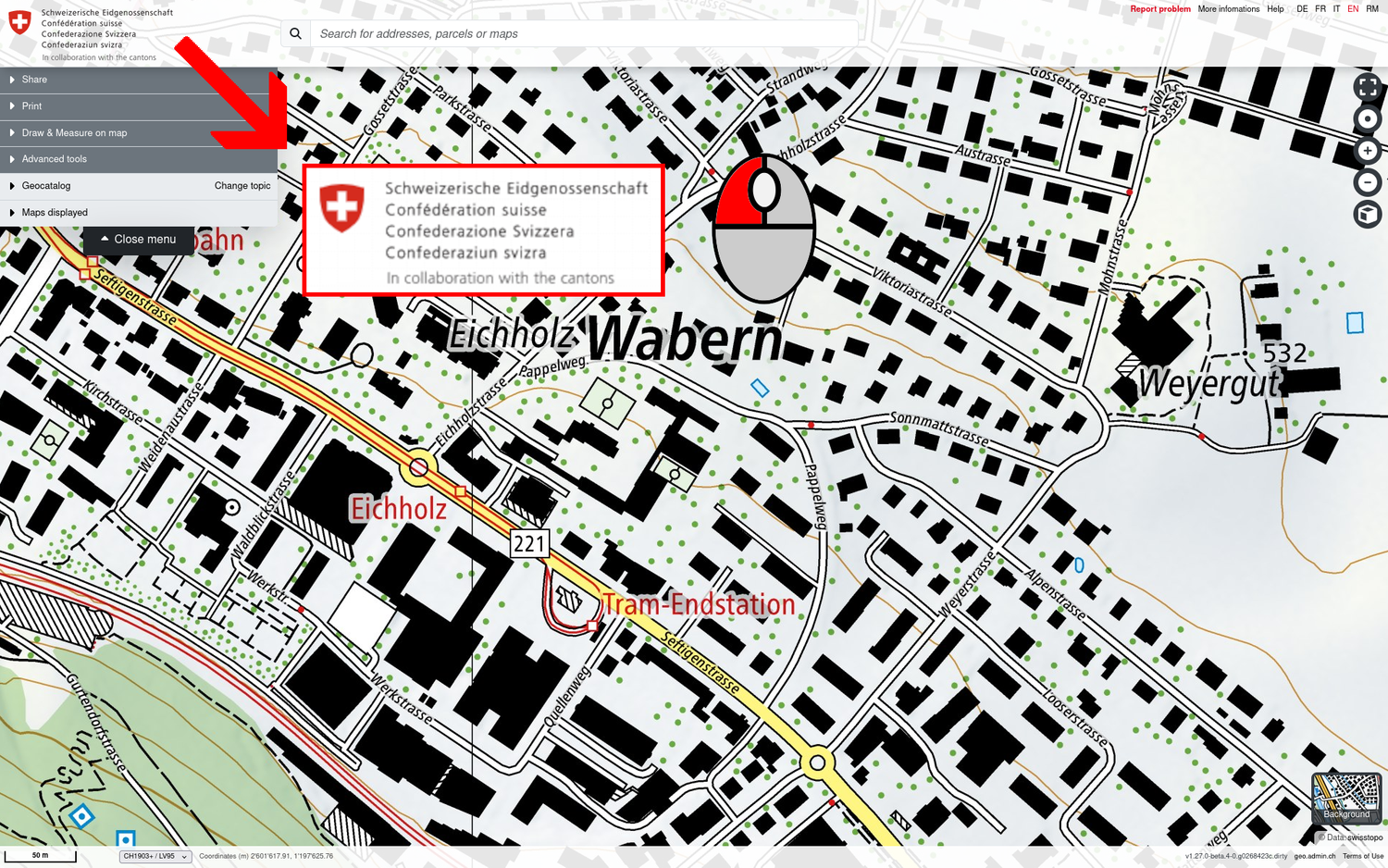
If you want to reset the map viewer to the start view, click on the logo of the Swiss Confederation in the top left corner.
Caution: The previous map view is lost when you reset to the start view, as are any geodata layers that may have been loaded.
Position tool / Centre on coordinates / Coordinate display
The coordinates in various spatial reference systems and the topographical elevation can be displayed for any point in Switzerland by right-clicking on the map. The position and altitude data can be easily copied or shared from the pop-up window.
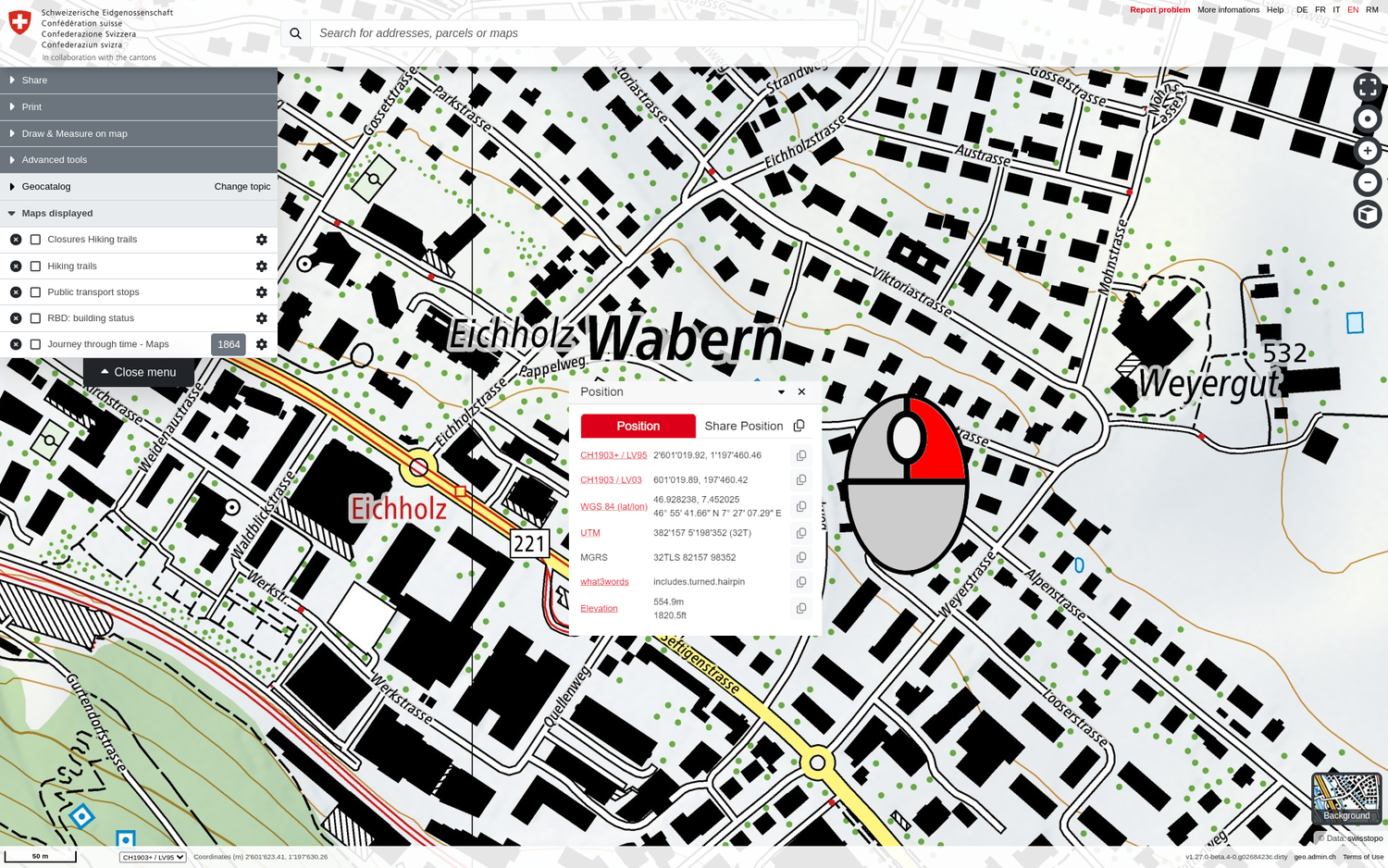
Centre map on coordinates
If the coordinates of a point of interest are known, you can simply enter them in the search bar to be centred directly on the desired location. map.geo.admin.ch can process coordinates from the following spatial reference systems and concepts and in the following formatting variants:
- CH1903+ / LV95: 2600'000 1200'000 ◈ 2600000 1200000 ◈ 2600 000 1200 000 ◈ 2600000/1200000 ◈ 2600000 / 1200000 ◈ 2600000,1200000 ◈ 2600000 1200000 ◈ 1200000 1200000 2600000
- CH1903 / LV03: 600'000 200'000 ◈ 600000 200000 ◈ 600 000 200 000 ◈ 600000/200000 ◈ 600000 / 200000 ◈ 600000,200000 ◈ 600000 200000 ◈ 200000 600000
- WGS 84 (lat/lon): 46.97984 6.60757 (DD) ◈ 46°58.7904' 6°36.4542' (DM) ◈ 46°58'47.424'' 6°36'27.252'' (DMS, double single quote) ◈ 46°58'47.424" 6°36'27.252" (DMS, double quote)
- MGRS: «32TLT 98757 23913»
- what3words: «coincidence.different.blue»
Coordinate display and supported coordinate systems
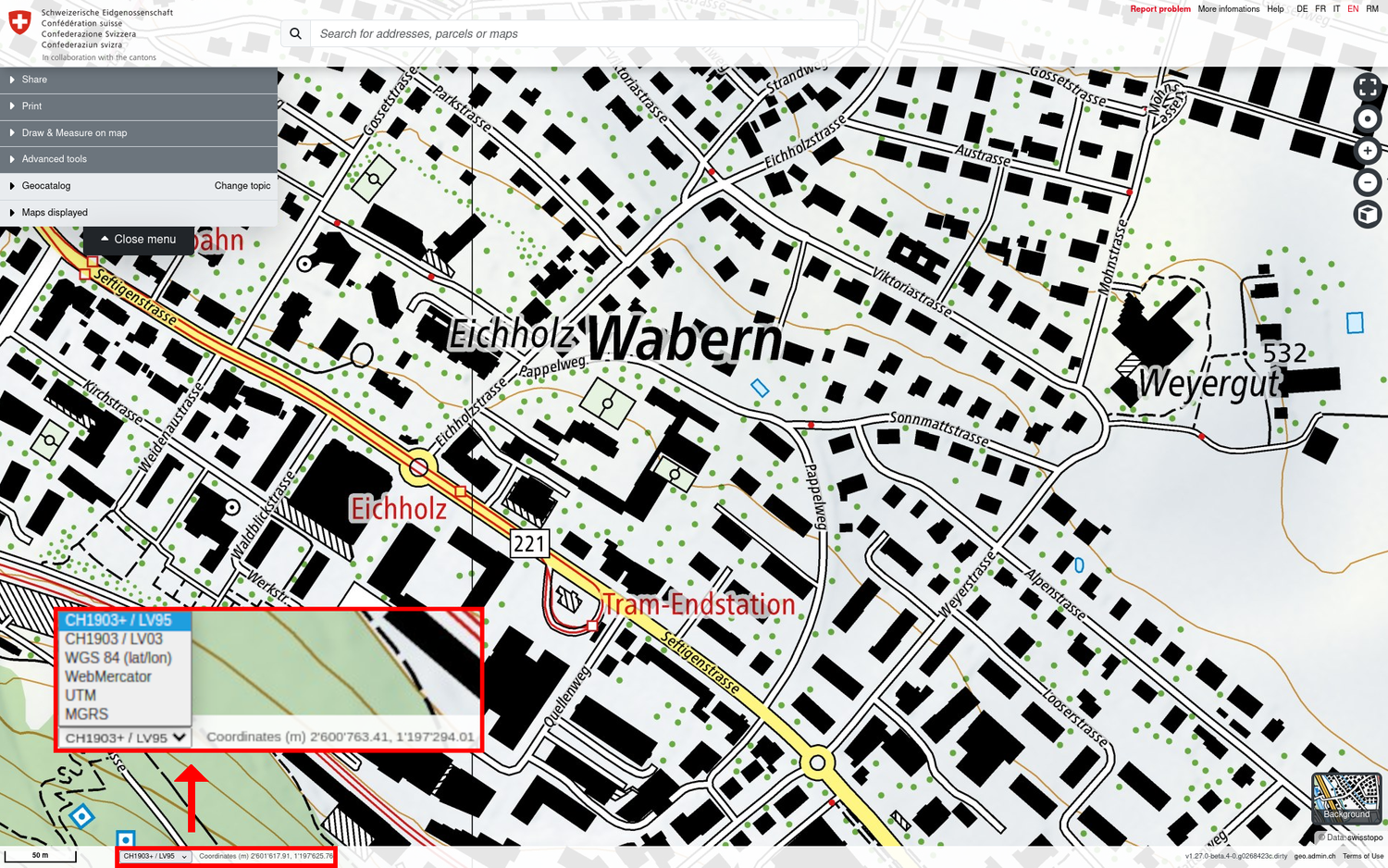
The coordinates of the mouse position are displayed directly below the map window. Swiss CH1903+ / LV95 coordinates are displayed by default. The following list of alternative reference systems can be selected in the drop-down menu:
- CH1903+ / LV95: National survey LV95, the official coordinates of Switzerland today (EPSG:2056)
- CH1903 / LV03: National triangulation LV03, until 2016 the official basis for surveying in Switzerland (EPSG:21781)
- WGS 84 (lat/lon): World Geodetic System 1984, geographical coordinates in longitude and latitude (EPSG:4326)
- WebMercator, Google Web Mercator, Spherical Mercator or WGS 84/Pseudo Mercator (EPSG:3857)
- UTM: Universal Transverse Mercator, Zone 32N (EPSG:25832)
- MGRS: Military Grid Reference System (EPSG:32632)
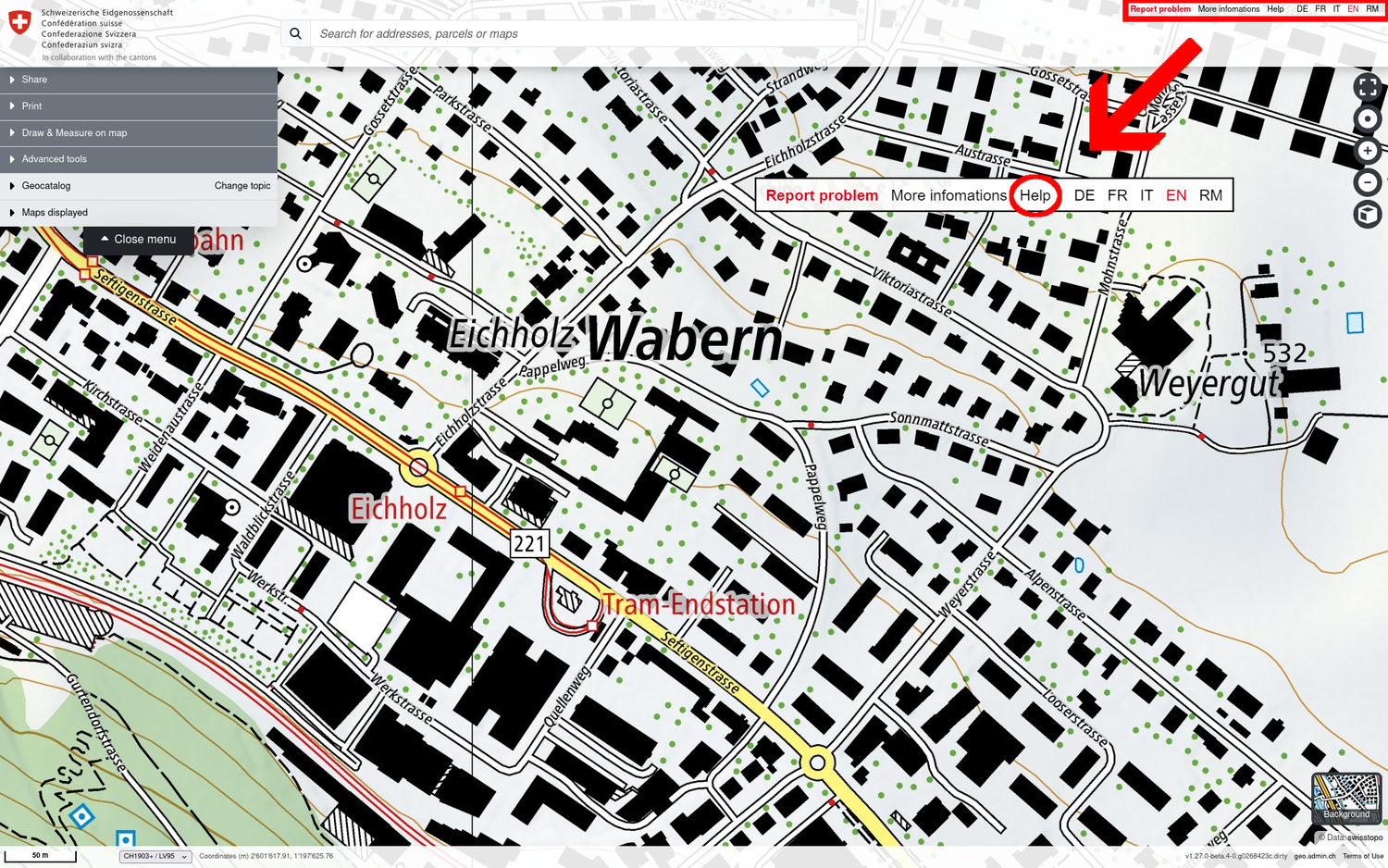
Help link
On the upper right corner, you can find the help link that will take you from the map viewer to this help content.
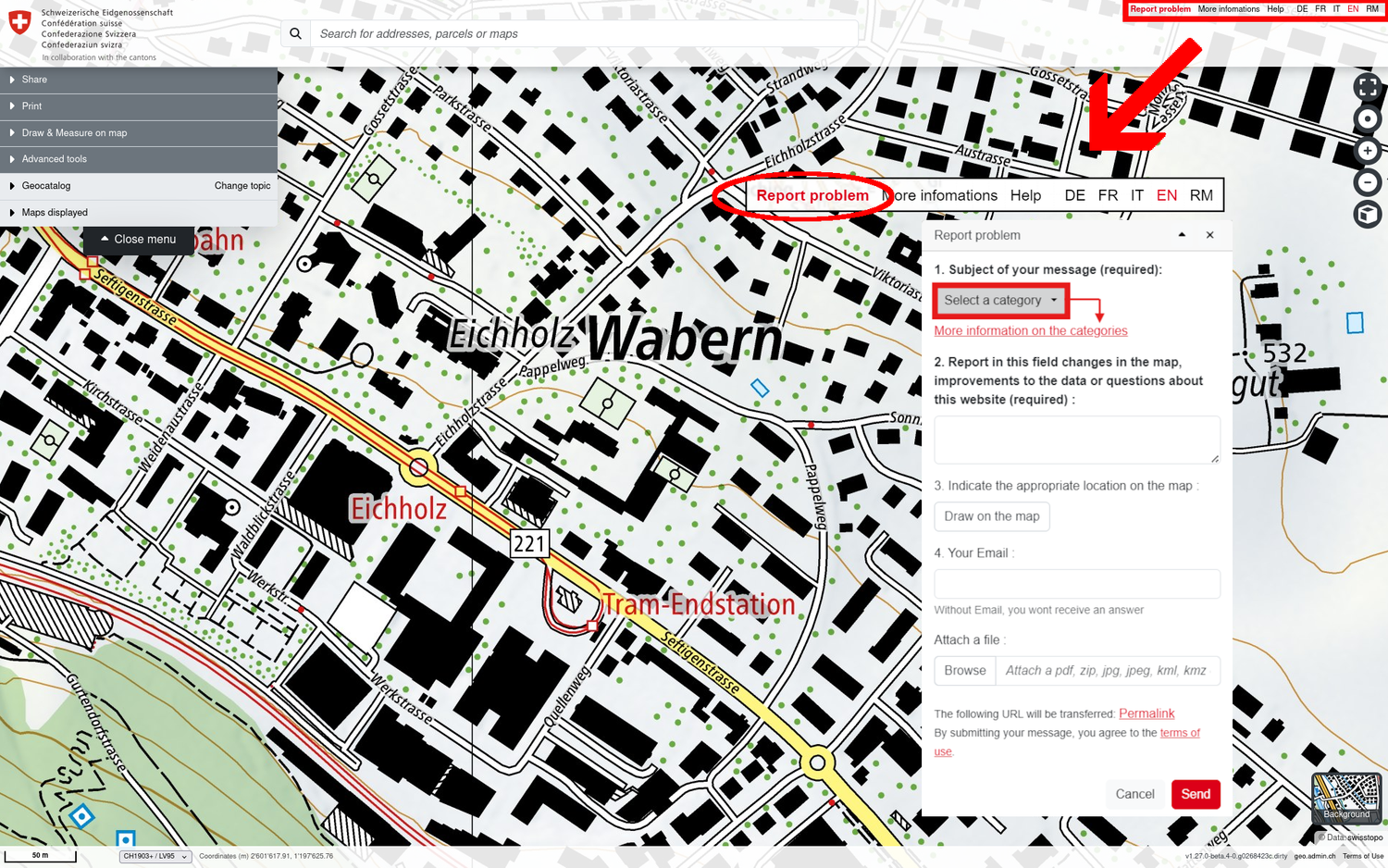
Report a problem
This tool allows you to make suggestions for improvements and corrections to map.geo.admin.ch and the geodata layers published in it. Error messages and general comments are welcome. For example, you can report changes to the map, improvements to the data or questions about the website.
Open map.geo.admin.ch and zoom in on the location with the problem. This can be a street, an address or another geographical object. Click on "Report problem" in the top right corner of the application.
- Select a category that concerns the report (mandatory field)
More about the categories below. - Use this field to report changes to the map, improvements to the data or questions about the webmap viewer (mandatory field)
Do not enter any personal information in this field (e.g. surname, first name). - Mark the affected location on the map (optional)
This is important for reports concerning the background map. - Enter your e-mail address so that we can clarify the request if necessary or if you await a response from us (optional)
For reports concerning the background map, notifications regarding the progress of your request will be sent to this email address. - Add your own file (optional)
This could help us better understand your report. (e.g. a screenshot or photo of the location concerned).
Report a problem Categories
Messages are divided into four categories, helping us to respond more efficiently:
- A revision of the background map
Report here any observations you have concerning the background maps (national map or aerial images). These may include errors, changes that have not been taken into account, or other feedback. For example: a geographical name is incorrect, a bridge, building, road or other feature of the landscape is missing or is obsolete. - A thematic map layer
Please enter your questions / reports here regarding the geodata layers that can be placed on the background maps and combined with each other from the catalogue in the left-hand menu or from the data search in map.geo.admin.ch. This category should be selected if, for example, you have a specific question regarding the "public transport stops", "RBD: building status", or any other dataset in map.geo.admin.ch. - An application or a service
Have you found a functional error or a problem with the use of the web application map.geo.admin.ch or the services of geo.admin.ch? Do you have any operational or technical questions about map.geo.admin.ch, docs.geo.admin.ch, wm(t)s.geo.admin.ch or data.geo.admin.ch that are not answered by the help content or service documentation at geo.admin.ch? - Other
This category is intended for all concerns that cannot be assigned to the above three reporting categories.
More information about geo.admin.ch
If you would like to know more about the federal geoportal geo.admin.ch and the background of map.geo.admin.ch, please do not hesitate to visit our website by clicking on the ‹More informations› link at the top right of the map viewer.
The conditions of use and functionings of geo.admin.ch are available at this link.