Printing problem on map.geo.admin.ch has been fixed
Since yesterday, Wednesday, July 2, 2025, at 4 p.m., until today, Thursday, July 3, 2025, map.geo.admin.ch has experienced a minor disruption with its printing service.

An update to map.geo.admin.ch made on July 2, 2025 caused a temporarily disruption to the system's printing service. This resulted in a problem with the browser cache storing the information.
The issue was resolved on the morning of Thursday, July 3, 2025. However, all users who used the print service at least once during this time period must clear their cache.
We have prepared simple instructions for each browser to help you do this:
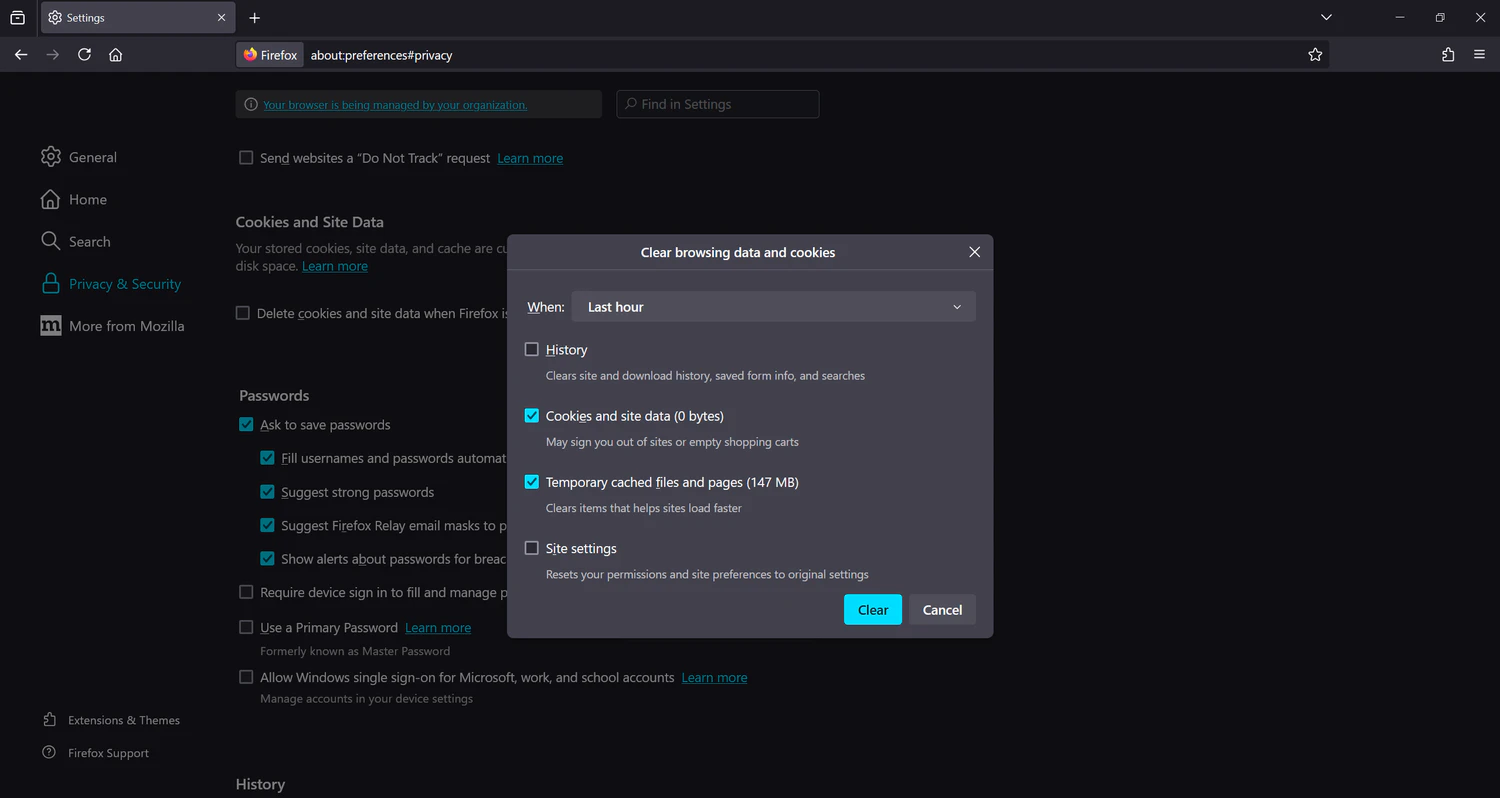
FIREFOX:
- Go to the Firefox menu (three horizontal lines), select “Settings” and then “Privacy & Security.”
- Under “Cookies and website data,” click “Clear data.”
- Select “Temporarily cached files and folders” and "cookies and site data" and then click “Clear.”
GOOGLE CHROME
- Click on the three dots (menu) in the upper right corner
- Select “More tools” and then “Clear browser data”
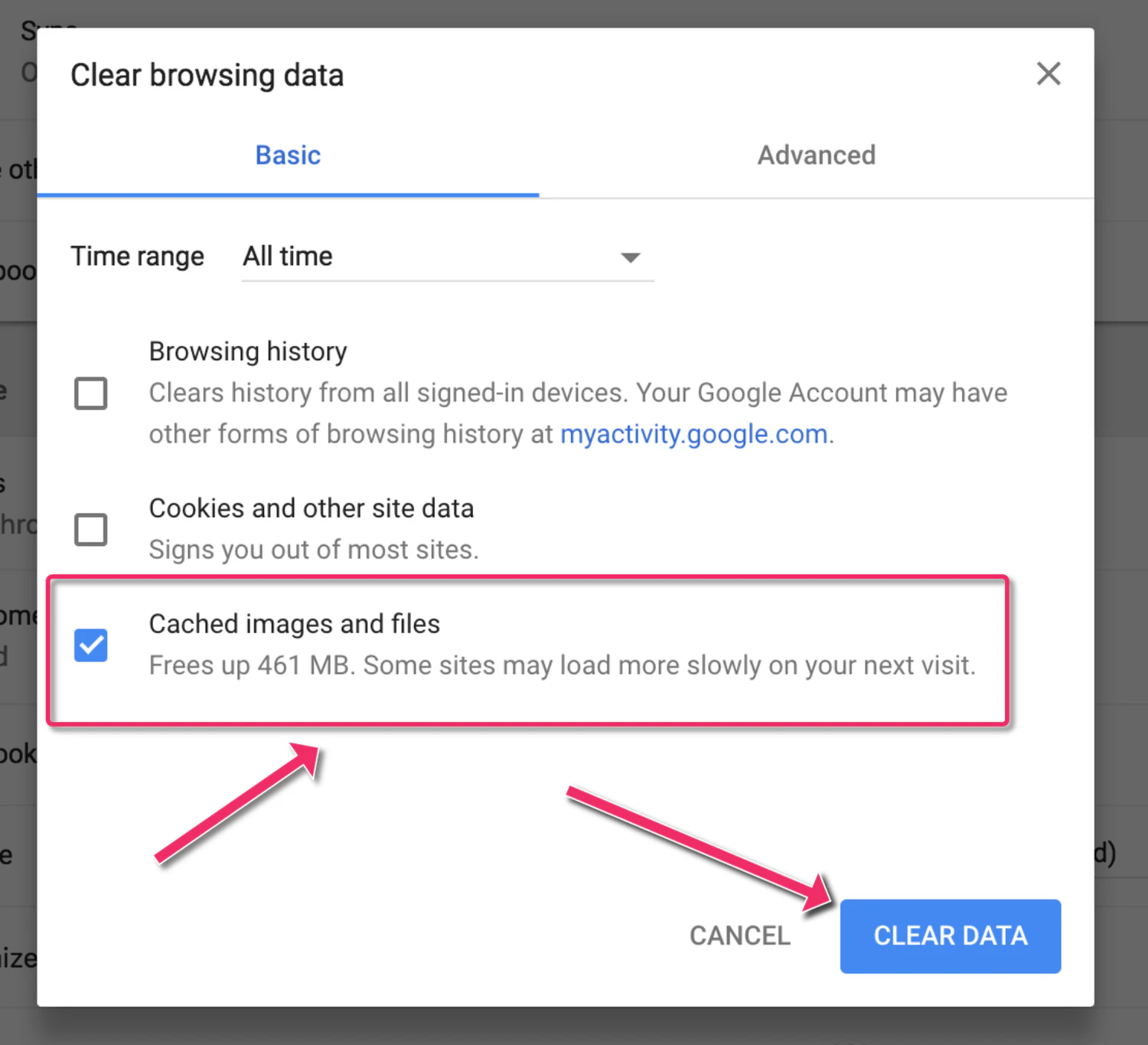
- In the new window, select the time period “All time” and activate “Cached images and files”
- Click on “Clear data”
EDGE
- Click on the three dots (menu) in the upper right corner and select “Settings.”
- Go to the “Privacy, search, and services” section and click on “Clear browser data” and then on “Choose what to clear.”
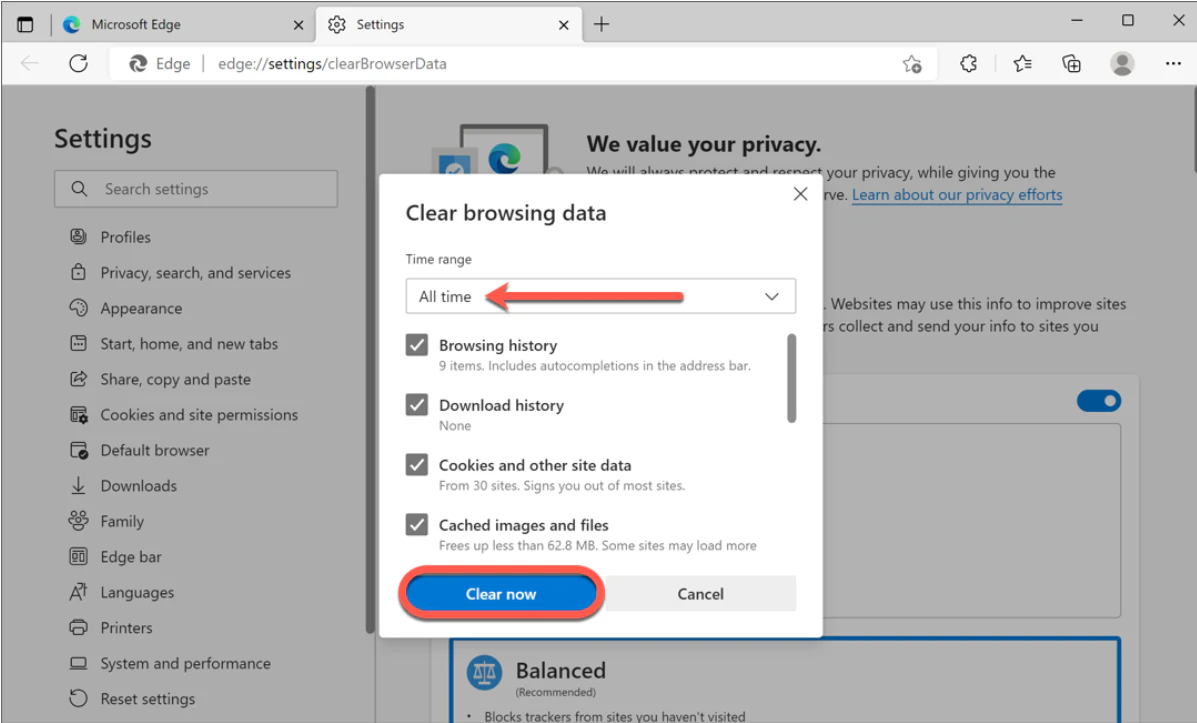
- Select time range: Select the time range for which you want to clear the cache (e.g., “Last hour,” “Last 24 hours,” “All time”).
- Select items. Make sure the “Cached images and files” checkbox is selected
- Delete: Click the “Clear now” button to clear the cache
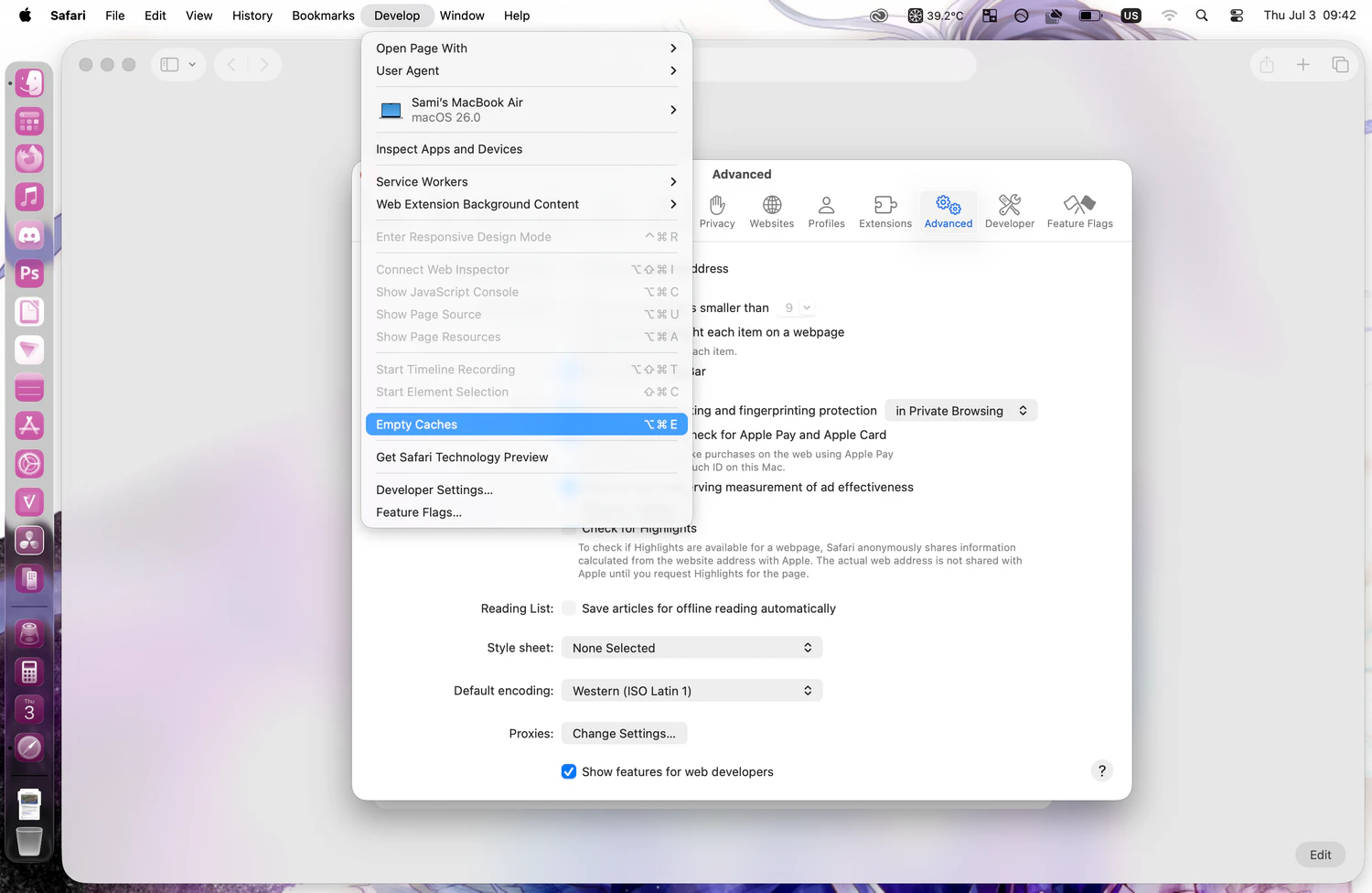
SAFARI
- In Safari, go to “Settings” > “Advanced” and enable “Show Develop menu in menu bar.”
- Click on ‘Develop’ in the menu and then on “Empty Cache.”